Setting up self-hosted AI via Open WebUI on your own server isn't complicated, but there are a few practical things worth knowing before you spin anything up. This guide walks you through both setup paths for self-hosting AI, covers the hardware tradeoffs, and doesn't pretend a $10/mo VPS will run a 70B model at full speed.
What Is Open WebUI?
If you've used ChatGPT's interface and thought, "I wish I could run something like this on my own server," that's exactly what Open WebUI provides. It's a source-available, free-to-self-host AI chat interface that connects to local models via Ollama or remote APIs like OpenAI and Anthropic. You get a clean chat UI, conversation history, multi-model support, and full control over your data.
When you self-host AI, your prompts don't leave your server. That matters if you're handling anything sensitive: internal docs, client data, or code with proprietary logic.
Open WebUI is just the interface. The actual intelligence still needs a backend — either a model running locally or an external API you're paying for.
What Open WebUI Can and Can't Do
Here's the honest part most guides skip.
If you're planning to run local models using an Open WebUI + Ollama setup, your VPS specs dictate everything. On a CPU-only server, you can realistically run models up to 3–7B parameters — think Phi-3, Gemma 2B, or Mistral 7B at Q4 quantization. Inference will be slow (30–90 seconds per response, depending on the model), but it works for experimentation and light personal use.
For 13B+ models at usable speeds when you self-host AI, you need a GPU — either through a dedicated server with one attached, or by offloading inference to an external API.
That second path is actually the smarter starting point for most people looking to self-host AI: run Open WebUI on a VPS purely as the interface, and point it at OpenAI, Anthropic, or OpenRouter as the backend. In that setup, the VPS only serves the web UI, so minimal resources are needed and response times are fast because the heavy lifting happens elsewhere.
What You Need Before Setup
There are two paths. Pick the one that fits.
Scenario A: Open WebUI + Ollama (Local Inference)
In this setup, you're running the model on the VPS itself.
Requirements:
- Minimum 8 GB RAM (4 GB is technically possible, but expect slowdowns)
- 2+ CPU cores
- 50+ GB disk space
That last point matters more than most guides admit. The Ollama image is roughly 4.7 GB, Open WebUI is another 3.8 GB, and Mistral 7B Q4 adds ~4.1 GB on top. That's 12.6 GB before any conversation data, OS overhead, or Docker layer caching. On a tight NVMe allocation, you'll run out of space faster than expected.
The is*hosting Premium plan (4 CPU / 8 GB RAM / 50 GB NVMe, from $31.99/mo) is the practical starting point for this scenario. You can technically get away with less, but the disk math above is why we're not recommending the smallest tier here.
Premium VPS
VPS configuration right for Open WebUI: 8 GB RAM and 50 GB SSD.
Scenario B: Open WebUI + External API
In this setup, the VPS only hosts the web interface while the model itself runs on OpenAI/Anthropic/OpenRouter's servers. Requirements are minimal; 2 CPU / 2 GB RAM is plenty. The is*hosting Start plan (from $10.19/mo) handles this with no problem.
How to Install Open WebUI on a VPS
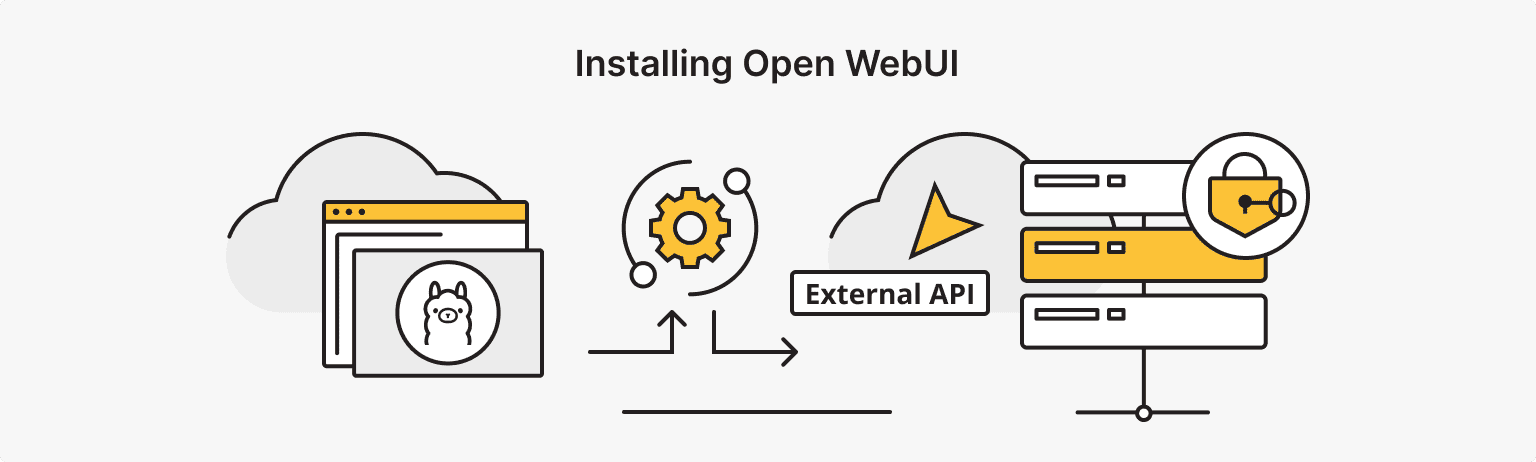
SSH into your VPS and make sure Docker is installed. If it's not:
curl -fsSL https://get.docker.com | sh
sudo usermod -aG docker $USER
Log out and back in for the group change to take effect.
Open WebUI + Ollama (All-in-One Docker Compose)
Create a compose.yaml:
services:
  ollama:
    image: ollama/ollama
    container_name: ollama
    volumes:
      - ollama:/root/.ollama
    restart: unless-stopped

  open-webui:
    image: ghcr.io/open-webui/open-webui:main
    container_name: open-webui
    depends_on:
      - ollama
    ports:
      - "3000:8080"
    environment:
      - OLLAMA_BASE_URL=http://ollama:11434
      - WEBUI_SECRET_KEY=your-secret-key-here
      - OLLAMA_MAX_LOADED_MODELS=1
    extra_hosts:
      - "host.docker.internal:host-gateway"
    volumes:
      - open-webui:/app/backend/data
    restart: unless-stopped

volumes:
  ollama:
  open-webui:
There are a few things worth noting here. WEBUI_SECRET_KEY controls JWT session encryption; set it to something random before going live. OLLAMA_MAX_LOADED_MODELS=1 prevents multiple models from loading into RAM simultaneously, which matters on an 8 GB server where a 7B model can quietly consume all available memory. If Open WebUI suddenly stops responding, run dmesg | grep -i oom to check whether the Linux OOM killer took it out.
The extra_hosts line is needed on certain network setups so the Open WebUI container can correctly resolve the Ollama container. It's in the official examples for a reason; include it.
Start it:
docker compose up -dIf the dashboard doesn't load, check the logs before anything else:
docker logs -f open-webuiPull a model (Mistral 7B Q4 is a solid starting point for CPU inference):
docker exec -it ollama ollama pull mistralOpen WebUI will be live at http://your-server-ip:3000. For production, put Nginx in front with SSL.
A security note: the first person to register on a fresh Open WebUI instance becomes the admin. If your VPS is internet-facing and port 3000 is open, someone else can grab that seat before you do. Either block port 3000 at the firewall until you've completed your own registration, or set ENABLE_SIGNUP=false in the environment immediately after creating your account.
One more thing about the image tag: the :main tag tracks the latest commit, which means a breaking update can land at any time. For anything beyond personal experiments, pin a specific release tag instead. Browse available versions on the Open WebUI GitHub releases page and replace :main with a tag like :v0.6.5.
Open WebUI with External API Only (No Ollama)
If you want to self-host AI but don't need local inference, skip Ollama entirely. This is Open WebUI with Docker in its lightest form:
docker run -d \
  -p 3000:8080 \
  -e WEBUI_SECRET_KEY=your-secret-key-here \
  -v open-webui:/app/backend/data \
  --name open-webui \
  --restart always \
  ghcr.io/open-webui/open-webui:main
Once it's up, go to Settings → Connections and add your OpenAI API key (or any OpenAI-compatible endpoint like OpenRouter). Done — you get the full Open WebUI interface with external inference, no GPU required.
VPS in 5-15 minutes
Get dedicated resources and KVM isolation for experiments worldwide.
How to Update Open WebUI
Knowing how to update Open WebUI before you need to do it saves a headache later. With Docker Compose, there's no need to tear everything down:
docker compose pull && docker compose up -dDocker pulls the new image and recreates only the containers that changed. Everything else keeps running. Your data persists in the named volume (open-webui), so conversations and settings carry over.
While you're at it, backing up that volume takes one command:
docker run --rm -v open-webui:/data -v $(pwd):/backup alpine tar czf /backup/open-webui-backup.tar.gz /dataRun that before any update, and you have a copy-pasteable safety net.
Open WebUI Tools and Pipelines
This is where Open WebUI starts to pull ahead of simpler alternatives.
Open WebUI tools are functions the model can call mid-conversation: web search, running a calculator, or fetching an API. You add them from the Tools section in admin settings. The community maintains a growing library at openwebui.com, and writing your own is straightforward in Python.
Open WebUI pipelines let you intercept and modify the request/response flow between the user and the model. You can use Open WebUI pipelines to inject system prompts dynamically, route different queries to different models, rate-limit users, or add custom logging. Pipelines run as a separate container and connect to Open WebUI via an internal API.
It's also worth mentioning RAG (Retrieval-Augmented Generation), one of Open WebUI's strongest built-in features. Upload documents directly into the interface, and the model answers questions from them rather than its general training data. Open WebUI supports nine vector database backends for this, so it scales from a single SQLite file to a full Chroma or Qdrant setup, depending on your needs.
Combined, these Open WebUI tools, pipeline features, and RAG support are what make it viable for production use — not just a personal chat toy, but a configurable AI layer for a team or product.
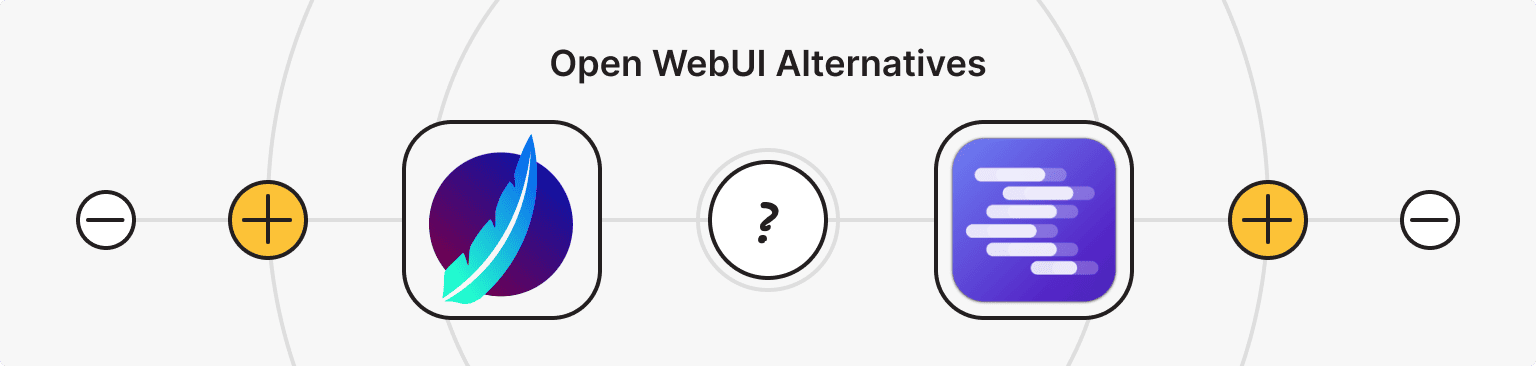
Open WebUI Alternatives: LibreChat, LM Studio, and Others
If you're already sold on Open WebUI, skip this section. If you're still weighing your options, here's the honest comparison.
Open WebUI vs. LibreChat
Both are self-hosted AI chat frontends that support multiple providers. LibreChat leans more heavily on multi-user support, plugin architecture, and OAuth/SSO out of the box. Open WebUI wins on simplicity; the setup is faster, the interface is cleaner, and Ollama integration is native. If you're a solo user or small team running local AI models, Open WebUI is the easier pick. LibreChat makes more sense if you need granular user roles and auth from day one.
LM Studio vs. Open WebUI
These actually serve different purposes. LM Studio is a desktop app, great for running local models on your own machine with a point-and-click interface. It's not a server you expose to a team or access remotely.
Open WebUI is a web app you host on a VPS and access from anywhere. If you want to self-host AI for multiple users or access it from multiple devices, LM Studio isn't the right tool. If you just want to experiment locally on your laptop, it's fine.
Other Open WebUI alternatives worth a quick look: Hollama (minimal, keyboard-first), Jan (desktop-focused like LM Studio), and Msty. None match Open WebUI's combination of Ollama support, active development, and extensibility.
The Bottom Line
Self-hosted AI isn't for everyone, but if data privacy matters or you want full control over your AI setup, Open WebUI is the most capable option available right now for self-hosting AI models.
Here's the short version of what to run:
- Experimenting with local AI models on CPU: Premium VPS plan (4 CPU / 8 GB RAM), Ollama + Open WebUI, start with Mistral 7B or Gemma 2B.
- Using an external API, just want the interface: Start VPS plan (2 CPU / 2 GB RAM), Open WebUI only, no Ollama needed.
- Production inference on large AI models: You need a GPU server, not a standard VPS.
If you're new to configuring self-hosted AI services, it's worth reading up on Linux VPS basics before diving in; the setup above assumes you're comfortable in a terminal.
The good news: Open WebUI's Docker setup is genuinely one of the easier self-hosted AI deployments you'll do. Get it running once, and you'll understand why it's become the default choice for anyone serious about running their own AI stack.