Your team writes docs in Notion. Works fine, until a compliance question comes up about where the data actually lives. Or the invoice for 25 seats hits your inbox. Docmost is a self-hosted wiki that handles both problems. It's open-source, runs on your VPS via Docker Compose, and comes with a real-time collaborative editor that actually feels modern. Your data stays on your server.
This article covers what Docmost is, how it stacks up against the alternatives, and how to get it running on a VPS, including a backup setup worth doing from day one.
What Is Docmost
Docmost is an open-source, self-hosted wiki and documentation platform for teams. It launched in 2023 and has picked up over 18,000 GitHub stars since then. The core is AGPL-3.0 licensed — genuinely open-source, with no strings attached.
The editor supports real-time collaboration: multiple people can work on the same page at once, with no overwrites or document locking. Built-in diagramming covers Mermaid, Draw.io, and Excalidraw. You also get nested pages, inline comments, page history, and full-text search.
Content is organized into Spaces. Each Space has its own member list and permission set, scoped around a team, a project, or whatever grouping fits how your company works.
Community vs. Business: What's Behind the Paywall
The Community edition covers the core collaboration features that a small or mid-size team needs to run a solid self-hosted wiki. Here's a full breakdown:
|
Feature |
Community (free) |
Business/Enterprise |
|
Pages, editor, rich content blocks |
YES |
YES |
|
Real-time collaborative editor |
YES |
YES |
|
Spaces (unlimited) |
YES |
YES |
|
Groups |
YES |
YES |
|
Comments and resolve comments |
YES |
YES |
|
Page history and restore |
YES |
YES |
|
Diagrams (Mermaid, Draw.io, Excalidraw) |
YES |
YES |
|
Public page sharing |
YES |
YES |
|
Import (Markdown, HTML, Notion, DOCX) |
YES |
YES |
|
Export (Markdown, HTML) |
YES |
YES |
|
Full-text search (pages) |
YES |
YES |
|
Full-text search in attachments (PDF, DOCX) |
NO |
YES |
|
Page-level granular permissions |
NO |
YES |
|
SSO (SAML 2.0 / OIDC / LDAP) |
NO |
YES |
|
Multi-factor authentication (MFA) |
NO |
YES |
|
AI Answers + AI writing assistant |
NO |
YES |
|
REST API and API keys |
NO |
YES |
|
Import from Confluence |
NO |
YES |
|
Audit log |
NO |
Enterprise |
|
SCIM provisioning |
NO |
Enterprise |
The Business plan costs $3.50/seat/month on an annual billing plan, with a 10-seat minimum. For a team of 20, that comes to $840/year. Notion Business runs about $4,800/year for the same headcount. Confluence Cloud Standard sits around $1,536/year. If SSO is not on your requirements list, Community handles the rest at no cost.
Limitations Worth Knowing
Community has no SSO. If your team uses Okta, Entra ID, or any centralized identity provider, you need the Business plan — and there's no workaround for it.
The REST API is Business/Enterprise only. There are no documented outbound webhooks in Community either. Automation is possible through scripts that watch the database or storage volume directly, but that's fragile and unofficial.
Docmost is also a young project. Development is fast, but it doesn't have the decade-long ecosystem that Confluence has built up. For most teams setting up a self-hosted wiki for the first time, that gap won't show up in daily use.
Docmost vs. Alternatives: Notion, Confluence, Outline, Affine
Before committing to any self-hosted wiki, it helps to know exactly where Docmost fits, and where it doesn't.
|
|
Docmost |
Notion |
Confluence |
Outline |
Affine |
|
Self-hosted |
YES |
NO |
DC only |
YES |
YES |
|
License |
AGPL-3.0 |
Proprietary |
Proprietary |
BSL 1.1 |
MIT / prop. server |
|
Real-time collab |
YES |
YES |
YES |
YES |
YES |
|
Built-in diagrams |
YES |
Limited |
Via plugins |
NO |
YES (whiteboard) |
|
SSO |
Business+ |
Business+ |
DC |
Community+ |
Business+ |
|
Email login |
YES (pw) |
YES (pw) |
YES (pw) |
Magic link only* |
YES (pw) |
|
Confluence import |
Business+ |
NO |
N/A |
NO |
NO |
|
Maturity |
~2 yrs |
~10 yrs |
~20 yrs |
~5 yrs |
~3 yrs |
*Outline supports email magic-link login, but requires an SSO/OIDC provider to create the first user account. Email + password login is not supported natively.
Docmost vs. Notion
Notion is cloud-only; no self-hosted path exists. Enterprise data residency (including EU storage) is available, but that's not the same as running it on your own server. If full data control matters, Docmost is the only option.
Docmost vs. Confluence
Confluence Data Center is still sold, but Atlassian has laid out a clear end-of-life schedule. Existing customers can renew until March 2028, and affected apps will go read-only by March 2029.
New deployments are being steered toward Confluence Cloud, which gets expensive fast as headcount grows.
For teams looking at Confluence alternatives without the Atlassian price tag, Docmost covers the core use case: structured documentation with proper permissions, self-hosted, and no vendor lock-in.
Outline vs. Docmost
Outline is polished and fast. Its Business Source License (BSL 1.1) makes it source-available rather than open-source.
Outline doesn't support email + password login — users authenticate via SSO/OIDC or email magic link, but the magic link requires an OIDC provider for initial account creation. Docmost has native email + password auth out of the box, which significantly lowers the setup barrier.
Affine vs. Docmost
Affine is a different category of tool. It bundles docs, whiteboards, and task management into one local-first workspace.
Licensing is mixed: most of the codebase is MIT, but some server components have separate terms. If your goal is a team wiki with spaces and role-based access, Affine is solving a different problem than the one you have. Docmost is purpose-built for exactly that use case.
What You Need Before Setup
OS: Ubuntu 22.04 LTS or 24.04 LTS
Software requirements:
- Docker Engine 24.x or newer
- Docker Compose v2 (the plugin version, not the old standalone binary)
- Nginx, if you want a reverse proxy
- Certbot, if you want HTTPS through Let's Encrypt
Network side: Open port 3000 in your firewall; that's enough for direct access. A domain is optional. Without one, Docmost runs at http://YOUR_IP:3000, which works fine for internal use or testing. Steps 5 and 6 cover Nginx and Certbot if you do have a domain and want HTTPS.
Access: Root or a sudo user on the server.
Choosing the Right VPS Plan
The three Docmost containers consume around 500–600 MB of RAM at idle and roughly 2–3 GB of disk on a fresh install. Both numbers grow steadily as your team adds attachments and pages.
The Start plan covers a small team or a single-user evaluation. It has enough headroom to run the three containers without strain. For a team that documents work daily, Medium is the practical baseline. Its 4 GB of RAM leaves room for Docmost, Nginx, and a future n8n instance without close monitoring of memory.
Upgrading from Start to Medium later is straightforward, but moving the data takes time. If you already know the deployment is going into production, start on Medium.
|
Plan |
CPU / RAM / Storage |
Best for |
|
Start VPS – from $10.19/mo |
2 vCPU / 2 GB RAM / 30 GB NVMe |
Teams up to 5 people, minimal file attachments |
|
Medium VPS – from $21.24/mo |
3 vCPU / 4 GB RAM / 40 GB NVMe |
Teams of 5–20 people, comfortable headroom, unmetered bandwidth |
|
Premium VPS – from $31.99/mo |
4 vCPU / 8 GB RAM / 50 GB NVMe |
20+ people, AI features (Business edition), heavy attachment use |
How to Install Docmost on a VPS
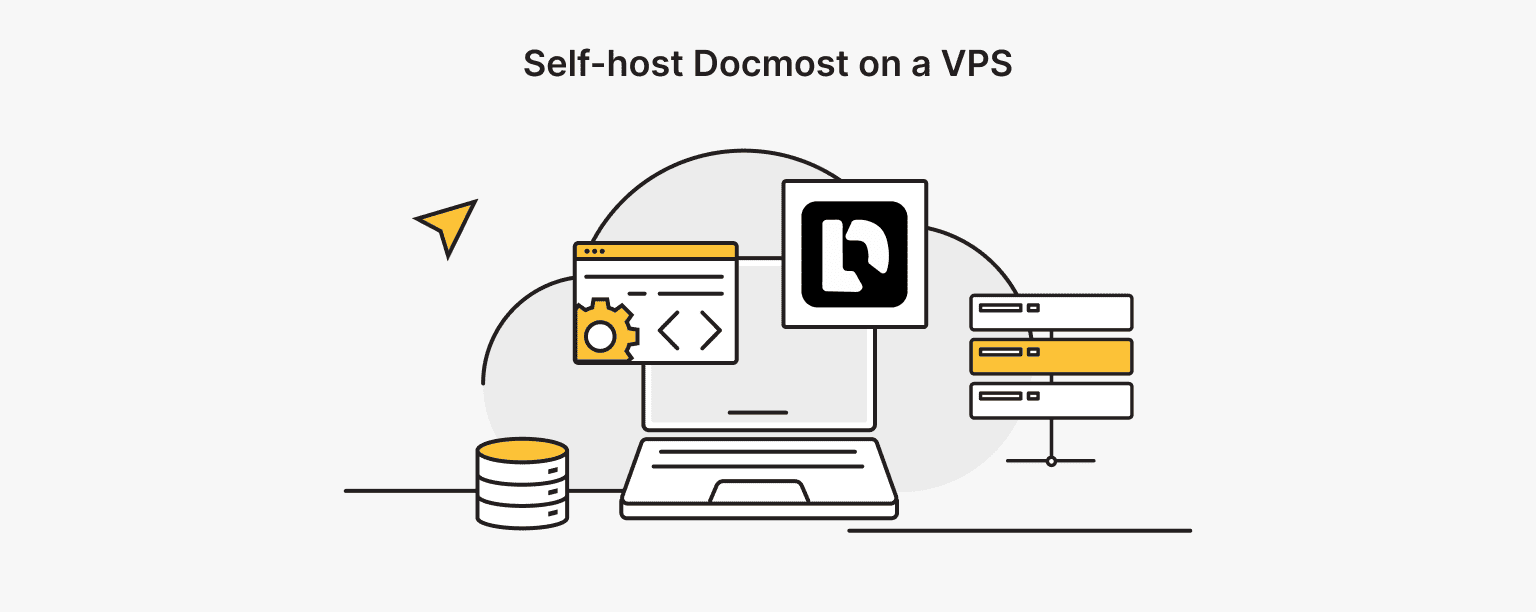
Three containers: Docmost itself, PostgreSQL for the database, and Redis handling caching and live session state. One Docker Compose file pulls it all together.
Step 1: Install Docker
# Add Docker's official GPG key and repository
sudo apt-get update -qqy
sudo apt-get install ca-certificates curl -qqy
sudo install -m 0755 -d /etc/apt/keyrings
sudo curl -fsSL https://download.docker.com/linux/ubuntu/gpg -o /etc/apt/keyrings/docker.asc
sudo chmod a+r /etc/apt/keyrings/docker.asc

echo \
  "deb [arch=$(dpkg --print-architecture) signed-by=/etc/apt/keyrings/docker.asc] \
  https://download.docker.com/linux/ubuntu \
  $(. /etc/os-release && echo "$VERSION_CODENAME") stable" | \
  sudo tee /etc/apt/sources.list.d/docker.list > /dev/null
sudo apt-get update -qqy

# Install Docker Engine and the Compose plugin
sudo apt-get install docker-ce docker-ce-cli containerd.io docker-compose-plugin -qqy

# Verify
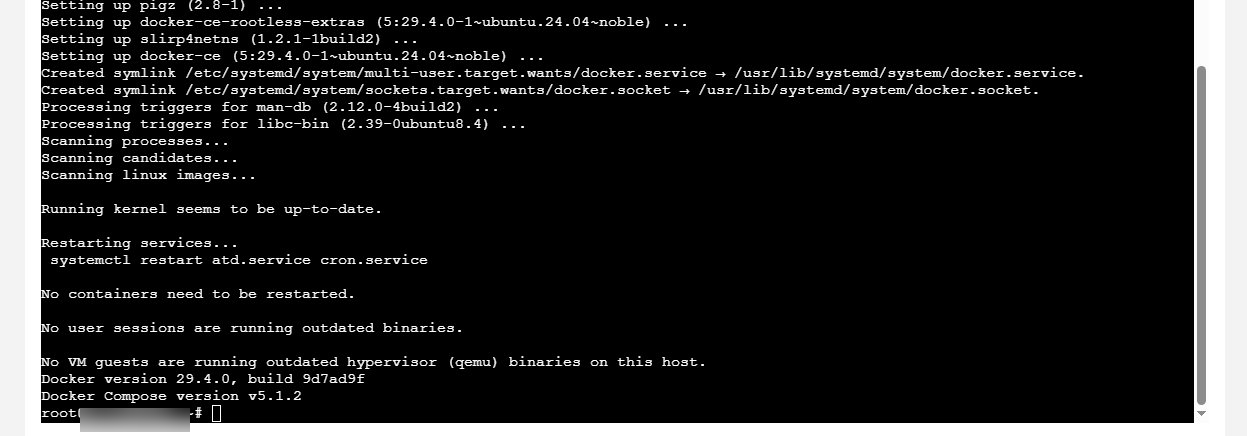
docker --version
docker compose version
Expected result:
Step 2: Download the Docker Compose Config
Create a working directory and pull the official compose file from the Docmost GitHub repository:
mkdir docmost && cd docmost
curl -O https://raw.githubusercontent.com/docmost/docmost/main/docker-compose.yml
This docker-compose.yml defines three services (Docmost, db, Redis) with named volumes and internal networking.
Step 3: Configure Environment Variables
Open the compose file and edit the environment variables in place:
vi docker-compose.ymlThe official docker-compose.yml template looks like this (with your values filled in):
services:
  docmost:
    image: docmost/docmost:latest
    depends_on:
      - db
      - redis
    environment:
      APP_URL: "https://wiki.yourdomain.com"
      APP_SECRET: "REPLACE_WITH_LONG_SECRET"   # min 32 chars
      DATABASE_URL: "postgresql://docmost:STRONG_DB_PASSWORD@db:5432/docmost"
      REDIS_URL: "redis://redis:6379"
    ports:
      - "3000:3000"
    restart: unless-stopped
    volumes:
      - docmost:/app/data/storage

  db:
    image: postgres:18
    environment:
      POSTGRES_DB: docmost
      POSTGRES_USER: docmost
      POSTGRES_PASSWORD: STRONG_DB_PASSWORD
    restart: unless-stopped
    volumes:
      - db_data:/var/lib/postgresql

  redis:
    image: redis:8
    command: ["redis-server", "--appendonly", "yes", "--maxmemory-policy", "noeviction"]
    restart: unless-stopped
    volumes:
      - redis_data:/data

volumes:
  docmost:
  db_data:
  redis_data:
Generate APP_SECRET before saving:
openssl rand -hex 32
Expected result (there is a secret...):

Copy the output into the APP_SECRET field. If you leave the default placeholder value, Docmost will refuse to start. This is by design.
To enable email for user invitations, add the mail configuration. Both options encrypt the connection — they just do it differently.
# Option A: STARTTLS on port 587 (most providers: Gmail, SendGrid, etc.)
MAIL_DRIVER=smtp
SMTP_HOST=smtp.yourmailprovider.com
SMTP_PORT=587
SMTP_SECURE=false          # false = STARTTLS; connection upgrades to encrypted
[email protected]
SMTP_PASSWORD=your_smtp_password
[email protected]
MAIL_FROM_NAME=Docmost

# Option B: SSL/TLS on port 465
SMTP_PORT=465
SMTP_SECURE=true           # true = implicit SSL from the start
Step 4: Start the Stack
cd ~/docmost
docker compose up -d
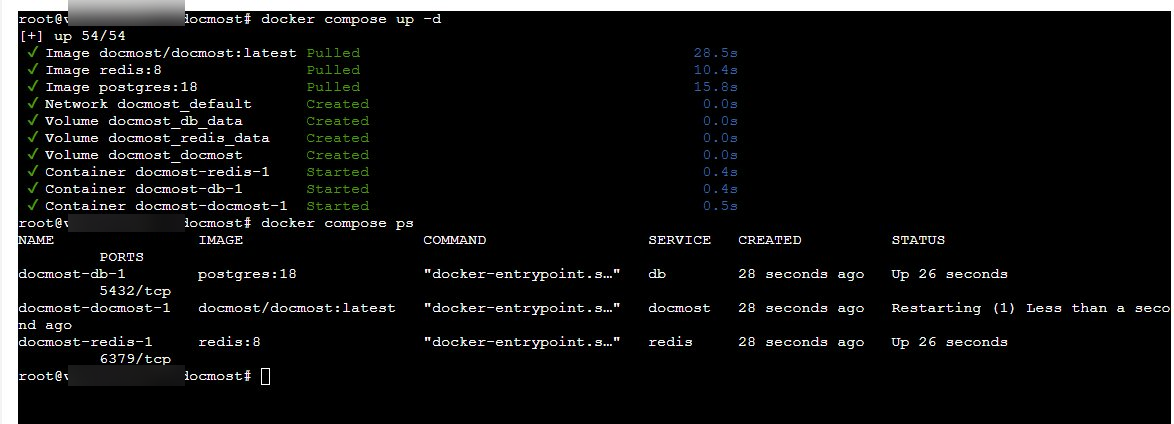
Docker pulls the images and starts all three containers. The first run takes 1–2 minutes. Check the status:
docker compose ps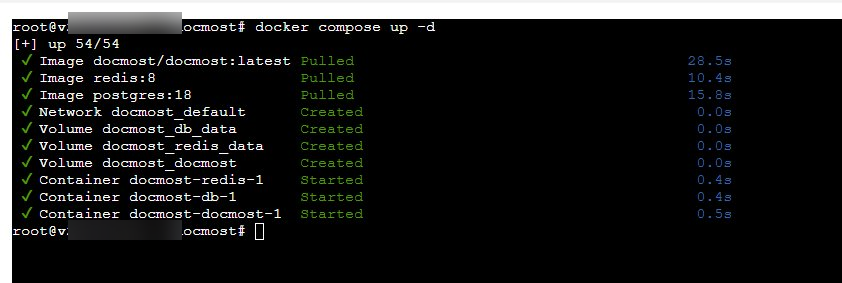
All three containers should show as running. The most common cause of a failed start is a missing or unchanged APP_SECRET. Fix it, then run docker compose up -d again.
Step 5: Set Up Nginx as a Reverse Proxy
sudo apt install -y nginxsudo nano /etc/nginx/sites-available/docmostserver {
listen 80;
server_name wiki.yourdomain.com;
client_max_body_size 100M;
location / {
proxy_pass http://127.0.0.1:3000;
proxy_http_version 1.1;
proxy_set_header Upgrade $http_upgrade;
proxy_set_header Connection "upgrade";
proxy_set_header Host $host;
proxy_set_header X-Real-IP $remote_addr;
proxy_set_header X-Forwarded-For $proxy_add_x_forwarded_for;
proxy_set_header X-Forwarded-Proto $scheme;
proxy_read_timeout 90;
}
}The Upgrade and Connection headers are required for Docmost's real-time collaboration WebSocket connections. Without them, live co-editing breaks.
sudo ln -s /etc/nginx/sites-available/docmost /etc/nginx/sites-enabled/
sudo nginx -t && sudo systemctl reload nginx
Step 6: Enable HTTPS with Certbot
sudo apt install -y certbot python3-certbot-nginx

sudo certbot --nginx -d wiki.yourdomain.com \
  --non-interactive --agree-tos \
  -m [email protected] --redirect
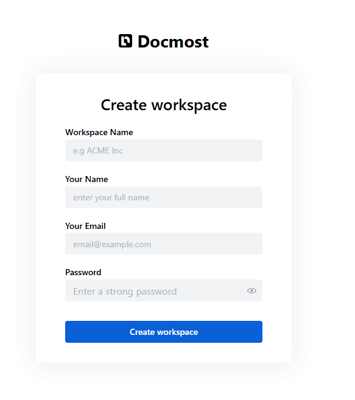
Certbot modifies your Nginx config automatically and sets up auto-renewal. Now open https://wiki.yourdomain.com. You should see the Docmost workspace setup screen.
Post-Install: Spaces, Permissions, First Steps

Set up the structure before you put content into it.
Create a Space for each team or project, for example, Engineering, Product, and HR. Each Space has its own page tree and its own permissions, kept separate from the others. Then configure Groups before you invite anyone. A Group lets you assign Space access to multiple people in one action instead of working through users one at a time.
Once Groups are configured, go to Settings, open Members, and invite by email. If invites are not landing, check the mail config:
docker compose logs docmost | grep mail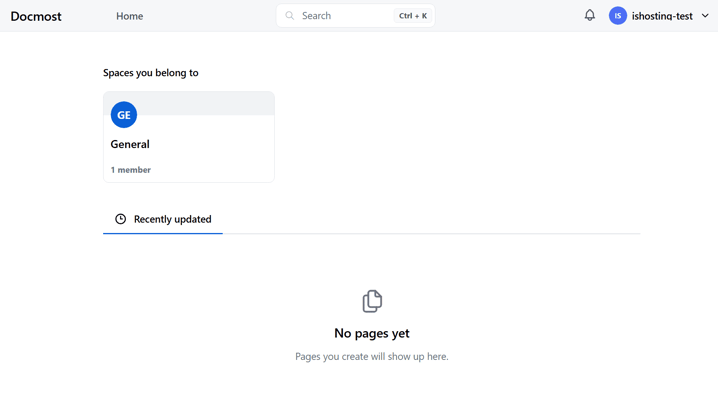
Click on General and select a new page to create a new dock.
Extending Docmost: Built-in Integrations
Docmost plugins are built in rather than installed. You get native embeds for Draw.io, Excalidraw, and Mermaid inside pages, plus Loom, Airtable, Miro, and others via the /embed slash command.
For AI features, Business plan users can connect to OpenAI, Google Gemini, or a local Ollama instance. Ollama keeps everything on your server:
AI_DRIVER=ollama
OLLAMA_API_URL=http://ollama:11434
AI_EMBEDDING_MODEL=nomic-embed-text
AI_COMPLETION_MODEL=qwen2.5:7b
Connecting n8n for Automation
By the way, here's a ready-made VPS with n8n pre-installed.
How you automate n8n and Docmost depends on your plan. Business and Enterprise users get a REST API with personal API keys. In n8n, this is just an HTTP Request node with your key in the Authorization header. Full reference at docmost.com/api-docs.
Community edition has no documented webhooks or API. Automation is technically possible by watching the PostgreSQL database or storage volume directly, but that's unofficial and breaks on updates.
Running n8n on the same VPS? Both services communicate over the internal Docker network with no extra config needed. See the guide to running n8n on a VPS for setup details.
n8n VPS Hosting
n8n preinstalled, 40+ locations worldwide, and full root access for your self-hosted tools.
Backup Strategy
is*hosting provides free weekly backups on all VPS plans.
If you need daily backups or more storage, you can connect a separate backup storage volume — available sizes and pricing are on the storage page. That handles the infrastructure layer.
The scripts below handle application-level backups, which are useful if you need point-in-time recovery or want to store copies off-site independently of the hosting provider.
Database Backup
Before running any backup command, verify your actual container and volume names. They depend on the Docker Compose project name, which defaults to the directory name. Check with:
docker compose ps          # shows container names
docker volume ls           # shows volume names
Use docker compose exec to run pg_dump through the running DB service, regardless of the actual container name:
#!/bin/bash
# Run from inside your docmost/ directory (where docker-compose.yml lives)
BACKUP_DIR="/var/backups/docmost"
DATE=$(date +%Y%m%d_%H%M%S)
mkdir -p "$BACKUP_DIR"
# Dump via the service name – works regardless of container name
docker compose exec -T db pg_dump \
-U docmost -d docmost -F c \
> "${BACKUP_DIR}/docmost_db_${DATE}.dump"
# Keep only the last 7 days
find "$BACKUP_DIR" -name "*.dump" -mtime +7 -delete
echo "DB backup: ${BACKUP_DIR}/docmost_db_${DATE}.dump"To restore:
# Stop the app first to avoid write conflicts
docker compose stop docmost

docker compose exec -T db pg_restore \
  -U docmost -d docmost --clean \
  < /var/backups/docmost/docmost_db_YYYYMMDD_HHMMSS.dump

docker compose start docmost
Files Backup
Attachment files live in the Docmost Docker volume. Verify its actual mount path first:
# Find the actual volume name (depends on your project/directory name)
docker volume ls | grep docmost
docker volume inspect <volume-name> | grep Mountpoint
BACKUP_DIR="/var/backups/docmost"
DATE=$(date +%Y%m%d_%H%M%S)
VOLUME_PATH=$(docker volume inspect $(docker volume ls -q | grep docmost | grep -v db | grep -v redis) \
--format '')
tar -czf "${BACKUP_DIR}/docmost_files_${DATE}.tar.gz" "$VOLUME_PATH"
find "$BACKUP_DIR" -name "*.tar.gz" -mtime +7 -deleteFor off-site docmost backup copies, rclone is the practical choice — it syncs to any S3-compatible storage (AWS S3, Cloudflare R2, Backblaze B2). Add it as a second step in the same cron job to get both local and remote copies automatically.
What You Can Build From Here
You now have a self-hosted wiki running on your own server, with the data under your control. No cloud vendor in the loop, no per-seat SaaS bill for the core feature set, and no compliance question about where the documents live. That covers the main reason most teams start looking at Confluence alternatives.
Community covers everything for teams up to ~10 people. Once SSO or attachment search becomes a requirement, Business at $840/year for 20 seats is still a fraction of what Confluence or Notion costs. For larger deployments, Docmost supports horizontal scaling via Redis pub/sub; the architecture doesn't lock you into a single instance.
For the server itself, the Medium VPS plan is the right default for most teams. It gives you enough headroom to run Docmost, Nginx, and a future n8n instance on the same box without watching memory.
If you're exploring other self-hosted tools alongside your wiki, the blog has guides on running a self-hosted LLM on a VPS and setting up 3x-UI for VPN — both useful on the same server setup you just built.
Managed Dedicated Server
We handle setup, updates, monitoring, and support so that you can focus on your project.
From $66.67/mo