Your own password manager. Every password is stored on your server, not someone else's cloud. Compatible with all Bitwarden apps. Takes 15 minutes to set up.
Vaultwarden is an open-source, lightweight reimplementation of the Bitwarden server. It does everything the official Bitwarden server does — syncs passwords across devices, generates strong passwords, stores notes and cards — but runs in a single Docker container using about 30 MB of RAM. The official Bitwarden server needs 11 containers and significantly more resources.
We deployed Vaultwarden on an is*hosting VPS. This guide covers every step, including the one config mistake we made and how we fixed it.
What You'll Need
- An is*hosting VPS (Lite plan is enough)
- A domain or free DuckDNS subdomain (Vaultwarden requires HTTPS)
- About 15 minutes
Step 1: Order a VPS
Head to is*hosting and order a Lite VPS plan:
- CPU: 1 vCPU
- RAM: 1 GB
- Storage: 20 GB NVMe
- OS: Ubuntu 24
- Location: for a vault, pick by jurisdiction, not just by ping — these are your passwords. is*hosting runs VPS in 40+ locations under one account, so you choose where they physically live.
- Price: $6.99/mo (or $5.94/mo on an annual plan)
Vaultwarden is extremely lightweight — 30 MB of RAM at idle. The Lite plan handles it easily. If you're planning to run other services on the same VPS (as we did, alongside Hermes on VPS), pick a larger plan accordingly.
Why host this on a VPS at all, rather than a laptop or a free tier? A password manager has to be reachable 24/7 for sync to work, and it holds data you can't afford to lose to a noisy-neighbor reboot or a quiet OOM kill.
Flat, predictable pricing matters too. is*hosting VPS plans run on KVM with NVMe storage and include free weekly backups, and support is staffed by engineers rather than a first-line script — useful the day something does break.
After payment, you'll receive an IP address and root password via email. Save both.
VPS
Lite VPS from $5.94/mo: 1 vCPU, 1 GB RAM, 20 GB NVMe in 40+ locations, with free weekly backups — enough to run your own Vaultwarden.
Step 2: Connect to Your Server via SSH
- Mac: Open Terminal (Cmd+Space → type "Terminal" → Enter)
- Windows: Download Tabby or use PowerShell
ssh root@YOUR_IP_ADDRESSEnter your password (it won't show on screen, that's normal). When you see root@server:~#, you're in. New to SSH, or want key-based login instead of a password? Our guide to SSH to a server covers it in a few minutes.
Step 3: Install Docker
curl -fsSL https://get.docker.com | bashWait 1–2 minutes.
Step 4: Create and Start Vaultwarden
Create a directory and a Docker Compose file:
mkdir /root/vaultwarden
nano /root/vaultwarden/docker-compose.yml
Paste:
services:
  vaultwarden:
    image: vaultwarden/server:latest
    container_name: vaultwarden
    restart: unless-stopped
    ports:
      - "127.0.0.1:8080:80"
    volumes:
      - ./data:/data
Save: Ctrl+O → Enter → Ctrl+X
Start it:
cd /root/vaultwarden
docker compose up -d
Docker pulls the ready-made image (it takes about 30 seconds). You'll see something like:
✔ Image vaultwarden/server:latest  Pulled
✔ Network vaultwarden_default      Created
✔ Container vaultwarden            Started
Verify that it's running:
curl -s http://localhost:8080 | head -5If you see HTML output, it works.
Note the bind: 127.0.0.1:8080:80 keeps Vaultwarden on loopback, so it's reachable only through Caddy over HTTPS. Bind it to 0.0.0.0 (the bare 8080:80) and your vault is also exposed in plain HTTP on the public IP (not what you want for a password store). On our Lite box, docker stats --no-stream showed the container idling at ~28 MB — one process, no database server, nothing to tune.
Step 5: Set Up a Domain with HTTPS
Vaultwarden requires HTTPS. Without it, the web vault won't let you create an account. You need a domain name and an SSL certificate.
If you don't have a domain, use DuckDNS (free):
- Go to duckdns.org and sign in with Google
- Create a subdomain (e.g., myvault) — it becomes myvault.duckdns.org
- Set the IP to your VPS IP address
Install Caddy (handles SSL automatically):
apt install -y caddyConfigure Caddy:
nano /etc/caddy/CaddyfileDelete everything in the file (hold Ctrl+K until it's empty) and paste:
YOUR_DOMAIN.duckdns.org {
    reverse_proxy localhost:8080
}
Replace YOUR_DOMAIN.duckdns.org with your actual domain.
Save and restart:
systemctl restart caddyWait 10–15 seconds. Caddy automatically obtains an SSL certificate from Let's Encrypt.
Open the firewall. Allow SSH first — if you enable ufw with only port 443 open, you'll lock yourself out of the server:
ufw allow OpenSSH
ufw allow 443/tcp
ufw enable
ufw status
Open https://YOUR_DOMAIN.duckdns.org in your browser. You should see the Vaultwarden login page.
Watch the port number. The most common mistake is pointing Caddy at the wrong port. Vaultwarden runs on port 8080. If you run other services (say, another app on 7788), make sure each Caddy block points to the correct port. The symptom: 502 Bad Gateway or connection refused errors in the Caddy logs.
Step 6: Create Your Account
Click Create Account on the Vaultwarden web page. Enter:
- Email address
- Master password (memorize this! If you lose it, your data is gone forever)
- Confirm master password
Click Create Account. You're in.
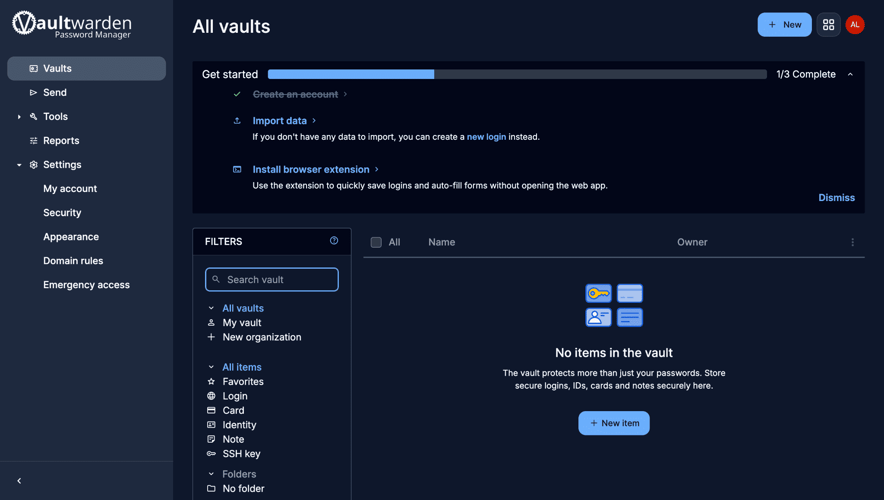
Disable public registration after creating your account. You don't want random people signing up on your server. Set SIGNUPS_ALLOWED=false in the Docker Compose environment:
nano /root/vaultwarden/docker-compose.ymlAdd the environment variable:
services:
  vaultwarden:
    image: vaultwarden/server:latest
    container_name: vaultwarden
    restart: unless-stopped
    environment:
      - SIGNUPS_ALLOWED=false
    ports:
      - "127.0.0.1:8080:80"
    volumes:
      - ./data:/data
Then restart:
cd /root/vaultwarden && docker compose up -dStep 7: Connect Your Devices
Vaultwarden is fully compatible with all official Bitwarden apps:
- Browser: Install the Bitwarden extension for Chrome, Firefox, Safari, or Edge
- Phone: Install Bitwarden from the App Store or Google Play
- Desktop: Download the Bitwarden desktop app
In every app, before logging in:
- Tap the gear icon or find Self-hosted / Self-hosted environment
- Enter your server URL: https://YOUR_DOMAIN.duckdns.org
- Save, then log in with your email and master password
All passwords sync across all devices through your server.
Troubleshooting
502 Bad Gateway
Caddy can't reach Vaultwarden. Check:
Is the container running?
docker psYou should see vaultwarden in the list. If not:
cd /root/vaultwarden && docker compose up -dIs Caddy pointing to the right port?
cat /etc/caddy/CaddyfileThe Vaultwarden block must say reverse_proxy localhost:8080. Not 7788, not 80 — 8080.
Restart Caddy after fixing:
systemctl restart caddy"An Error Has Occurred" When Creating an Account
You're accessing Vaultwarden over http:// instead of https://. The web vault requires HTTPS for all account operations. Set up Caddy with a domain (Step 5).
Can't Connect from the Bitwarden App
- Make sure you entered https://YOUR_DOMAIN (with https://) in the self-hosted URL field.
- Make sure port 443 is open: ufw allow 443/tcp
- Test from your phone's browser first: open https://YOUR_DOMAIN — if the web vault loads, the app will work too.
Useful Commands
cd /root/vaultwarden && docker compose up -d     # start
cd /root/vaultwarden && docker compose down       # stop
cd /root/vaultwarden && docker compose restart    # restart
docker logs vaultwarden --tail 20                 # view logs
docker ps                                         # check running containers
Backups
Your passwords are stored in /root/vaultwarden/data/. Back this up regularly:
cp -r /root/vaultwarden/data /root/vaultwarden-backup-$(date +%Y%m%d)For automated backups, set up a cron job:
crontab -eAdd:
0 3 * * * cp -r /root/vaultwarden/data /root/vaultwarden-backup-$(date +\%Y\%m\%d)This creates a daily backup at 3 AM.
Two layers help here. is*hosting includes free weekly backups on all VPS plans (full-server snapshots, good for "restore the whole box"). The cron copy above is the faster, targeted layer: it's just your vault data, so restoring it is a single file copy rather than rolling back the entire server. Keep both.
What You've Built
- A self-hosted password manager running 24/7
- HTTPS access via Caddy + free domain
- Compatible with all Bitwarden apps (browser, mobile, desktop)
- All data on your server — not in anyone else's cloud
- Uses ~30 MB of RAM — runs on the cheapest VPS plan
What's Next
- Import existing passwords — Vaultwarden supports importing from Bitwarden, LastPass, 1Password, Chrome, Firefox, and dozens of other managers
- Enable 2FA — add two-factor authentication to your vault in Account Settings
- Set up the admin panel — add ADMIN_TOKEN to your Docker Compose environment for a web-based admin interface. Generate a strong token first (openssl rand -base64 48). The admin panel sits behind nothing but this token, so don't enable it without one.
- Share passwords — create an Organization to share passwords with family or team members
Full documentation: github.com/dani-garcia/vaultwarden/wiki
FAQ
Is Vaultwarden as secure as the official Bitwarden server?
Your vault is encrypted with your master password on the client before anything reaches the server, so the encryption is the same regardless of which server stores it. What differs is the server code. Vaultwarden is a community reimplementation, not Bitwarden's. Keep HTTPS on, disable open registration, and protect the admin token to keep the exposure small.
Do the official Bitwarden apps work with it?
Yes, the browser extension, mobile apps, and desktop client all connect. Set the self-hosted server URL to your domain before logging in.
Do I need to own a domain?
You need HTTPS, not necessarily a paid domain. A free DuckDNS subdomain works fine, and Caddy issues the certificate automatically.
Where to Run It
Vaultwarden runs on the cheapest tier we offer. The Lite VPS plan (1 vCPU / 1 GB RAM / 20 GB NVMe) is $6.99/mo, or $5.94/mo on annual billing, in any of 40+ locations. Pick the jurisdiction you want your passwords to live, deploy, and point your Bitwarden apps to it.