Managing networks in the cloud isn’t always simple — hardware routers don’t scale easily, VPN setups can be time-consuming, and a small misconfiguration can break connectivity across your entire infrastructure. That’s why more teams are switching to virtual routers: they’re faster to deploy, easier to manage remotely, and often far more cost-effective than physical equipment. According to Mordor Intelligence, the virtual router market is expected to exceed $1 billion by 2030, growing at a compound annual growth rate of over 20%.
In this step-by-step guide, you’ll learn how to install MikroTik CHR on a VPS and build a reliable virtual router for secure routing, traffic control, and VPN access in modern cloud environments.
What Is MikroTik CHR, and Why Use It on a VPS?
MikroTik Cloud Hosted Router (CHR) is a virtualized version of MikroTik RouterOS that runs on virtual machines rather than physical hardware. It works with most popular hypervisors, such as VMWare, Hyper-V, VirtualBox, and KVM, and supports 64-bit x86 architecture. MikroTik CHR offers the same powerful features — routing, firewall, NAT, VPN, traffic management, and monitoring — but in a fully virtualized form.
Running MikroTik CHR on a VPS lets you create a flexible, scalable virtual router in the cloud. This approach eliminates hardware costs, ensures rapid deployment, and simplifies remote network management. It’s ideal for VPN gateways, cloud firewalls, multi-server routing, and modern software-defined networking environments.
MikroTik CHR on a VPS: 7 Steps to Deploying a Virtual Router
Before installing MikroTik CHR on a VPS, make sure your environment meets the following technical requirements. Below are the prerequisites for providing a stable network connection and avoiding common configuration issues.
1. VPS Requirements for MikroTik CHR
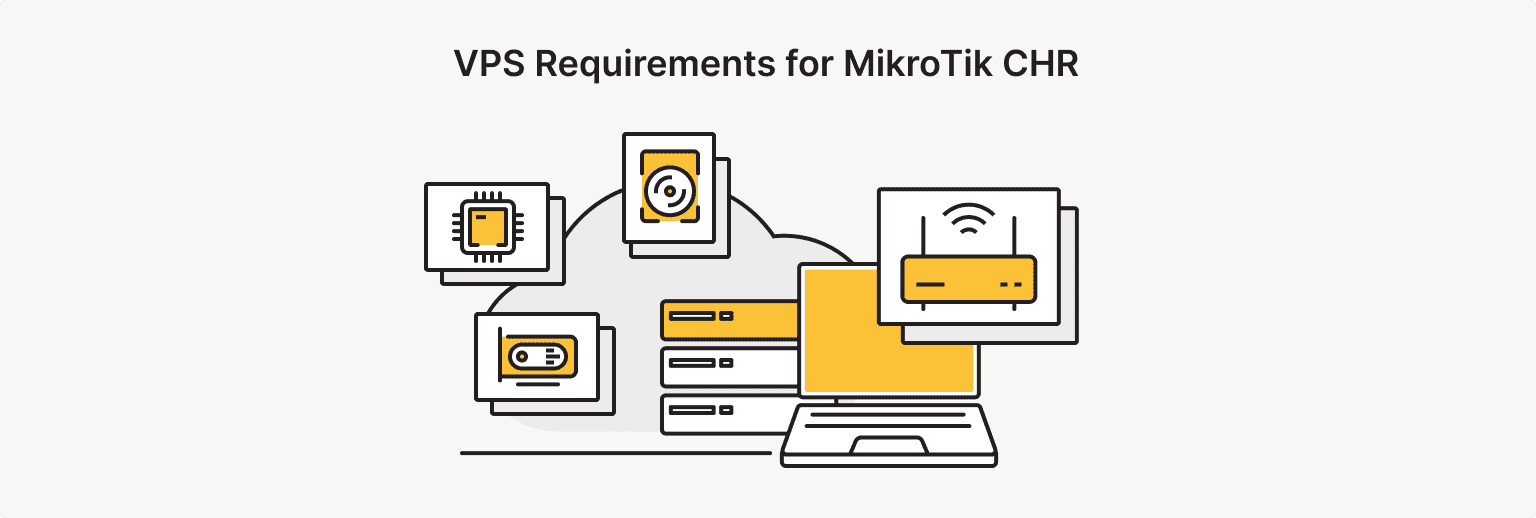
Before installing MikroTik CHR, check that your VPS meets these requirements:
- Fully virtualized VPS (KVM, Xen, Hyper-V). Container solutions such as OpenVZ or LXC are not supported, as CHR requires a custom kernel
- Processor: At least 1 vCPU, and more for high load, VPN use, or multiple firewall rules
-
Memory: 256 to 512 MB of RAM
-
Disk Space: 1–2 GB
- Access Level: Full administrative or root access to the VPS
- Access to the Command Line Interface (CLI)/WinBox console
Before launching MikroTik CHR, your VPS network must also meet the following requirements:
- At least one dedicated public IPv4 address
- Support for multiple IP addresses for NAT, firewall rules, or multi-service configurations
- IPv6 support for modern networking
- Additional virtual network interfaces (NICs) for more complex routing or VPN scenarios
- Information on your hosting provider's default gateway and subnet
After verifying your network and VPS, you can proceed to install and configure the virtual router. Meeting these basic requirements will make setup easier and ensure reliable operation of MikroTik CHR on your VPS.
2. Downloading and Preparing MikroTik CHR
Once your VPS is ready, download and prepare the MikroTik CHR image. You can download the latest image versions directly from the official MikroTik website.
MikroTik VPS from is*hosting provides a ready-to-use solution with quick access to a reliable virtualized environment, enabling you to create, manage, and scale your network infrastructure quickly. To install MikroTik VPS from is*hosting, you only need the minimum Linux Lite plan. Select the MikroTik CHR OS when ordering, and you can proceed directly to setup.
MikroTik VPS
Build, manage, and scale your network infrastructure quickly.
3. Initial Configuration of MikroTik CHR on a VPS
Let's start with logging in and setting up basic security. This step is crucial to set up MikroTik CHR on a VPS, as a new CHR installation may include default settings and services that are unsafe for public internet access.
First Login and Security Basics
Immediately after creating the MikroTik CHR virtual machine, log in to the console through your provider's control panel. Upon first boot, you'll see the console login page. The default username is admin, and there’s no password.
Set a strong password:
/user set admin password=YourStrongPassword
To reduce your attack surface, turn off services you won't use (telnet, ftp, etc.):
/ip service print
/ip service disable [find name=telnet]
Updating RouterOS
To maintain MikroTik RouterOS CHR stability and address security vulnerabilities, it’s essential to keep RouterOS up to date.
Update RouterOS via the CLI:
//system package update
check-for-updates
install
Reboot the system if necessary.
Setting the Hostname and Time Settings
Replace the hostname with a descriptive one for easier identification:
/system identity set name="CHR-VPS"
Set the time zone according to your region:
/system clock set time-zone-name=Europe/Warsaw
/system ntp client enable
Your MikroTik CHR VPS is now ready for further network and firewall configuration.
4. Configuring the Network and IP Addresses

After the initial setup, the next step is to configure the network and IP addresses.
Assigning Public IP Addresses
CHR interfaces are typically named ether1, ether2, etc. Assign your public IP address to the corresponding interface:
/ip address add address=YOUR_PUBLIC_IP/32 interface=ether1
Replace YOUR_PUBLIC_IP with the IP address provided by your VPS host.
Setting the Default Gateway
Define a default route to ensure traffic exits your router correctly:
/ip route add gateway=YOUR_GATEWAY_IP
Replace YOUR_GATEWAY_IP with the gateway IP address provided by your VPS host.
Basic Interface Configuration
Rename the interfaces for clarity:
/interface ethernet set ether1 name=WAN
/interface ethernet set ether2 name=LAN
Configure a LAN with an internal subnet. For example:
/ip address add address=192.168.1.1/24 interface=LAN
5. Enabling Internet Access

To enable internet access, you need to allow devices on your local network to access the internet:
Enable Source NAT (masquerade):
/ip firewall nat add chain=srcnat out-interface=WAN action=masquerade
This helps hide local network addresses behind a public IP address.
To test the connection directly to the router, run the following command:
/ping 8.8.8.8
Positive responses confirm that internet access is working.
6. Basic Firewall Configuration

To configure and secure your router, you’ll need to do the following:
Add simple rules to secure your router:
/ip firewall filter add chain=input connection-state=invalid action=drop
/ip firewall filter add chain=input connection-state=established,related action=accept
/ip firewall filter add chain=input in-interface=WAN protocol=tcp dst-port=22 action=drop
This configuration drops invalid packets, allows established sessions, and blocks SSH on the WAN by default. Configure this only if you need remote SSH access.
To protect access to the router, you can allow management from specific IP addresses by using an allow rule before denying all others:
/ip firewall filter add chain=input src-address=YOUR_ADMIN_IP action=accept
/ip firewall filter add chain=input in-interface=WAN action=drop
Replace YOUR_ADMIN_IP with your trusted IP address.
7. Advanced: Setting Up a VPN

Once your CHR network is up and running, setting up a VPN is a logical next step.
A VPN provides secure access to your network for remote users or offices.
Common VPN use cases include:
- Secure connections for employees working remotely
- Connections between data centers
- Secure access to internal corporate services
Two popular VPN protocols for RouterOS:
- WireGuard is a modern, simple, and fast VPN protocol, ideal for low-latency connections and remote access.
- IPsec is a popular, universal VPN for corporate and home networks.
An example of a minimal WireGuard configuration is shown below:
/interface wireguard add name=wg0 listen-port=13231
/ip address add address=10.10.10.1/24 interface=wg0
Using a ready-made MikroTik VPS server from is*hosting simplifies many of these steps, as the VPS comes pre-configured for MikroTik CHR, is quickly deployed, and includes technical support. With basic networking and security settings in place, your MikroTik cloud-hosted router is ready for real-world use.
MikroTik CHR Licensing Basics
When using MikroTik CHR on a VPS, MikroTik CHR licensing is a crucial aspect. Understanding how MikroTik CHR licenses work is essential for maximizing performance and avoiding unexpected limitations.
MikroTik CHR uses a software-based licensing model that limits the virtual router's maximum throughput, which directly affects performance. Licenses range from a free entry-level license to higher-performance, more expensive options.
Free and Paid Licenses
MikroTik CHR has its own licensing levels, which include free and paid licenses:
- Free MikroTik CHR Licenses:
Free license (free forever) – allows CHR to operate indefinitely with an interface limitation of 1 Mbps. All other features operate normally.
- Paid MikroTik CHR Licenses:
- P1 – provides higher throughput for use in low-load environments.
- P10 – supports moderate traffic levels.
- P-Unlimited – completely removes throughput restrictions.
|
License |
Speed Limits |
Price |
|
Free |
1 Mb |
Free |
|
P1 |
1 Gb |
$45 |
|
P10 |
10 Gb |
$95 |
|
P-Unlimited |
Unlimited |
$250 |
All MikroTik CHR licenses are available in a 60-day trial mode, and you can use the trial before you buy to test higher license tiers.
How Licensing Works in MikroTik CHR
Unlike RouterBOARD and x86, where license levels remove functional limitations, MikroTik CHR licenses differ primarily in throughput limits. All RouterOS features are available; the license you choose depends on your network load.
If you purchased a RouterOS device, the license is already pre-installed, and you don't need to do anything further.
For x86 systems, a license key linked to a unique Software ID is required. You can copy the key from your mikrotik.com account or email and paste it into the router.
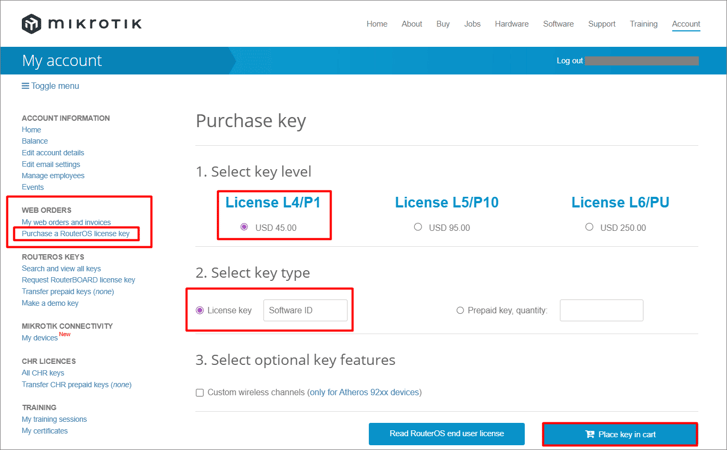
To purchase a RouterOS license key, follow these steps:
- Register and log in to yourmikrotik.com account.
- In your account menu on the left, go to WEB ORDERS → Purchase a RouterOS license key.
- Select the desired CHR license level (P1, P10, or P-Unlimited).
- Select the License key type.
- Enter your MikroTik Software ID to bind the license.
- Click Place key in cart.
- Complete your order using a credit card or PayPal.
- After purchase, copy the license key from your account and apply it to the CHR instance using:
- WinBox, previously downloaded from the official MikroTik website.
In WinBox, go to System → License, and click Past key.
You can also paste the key into the CLI at any time.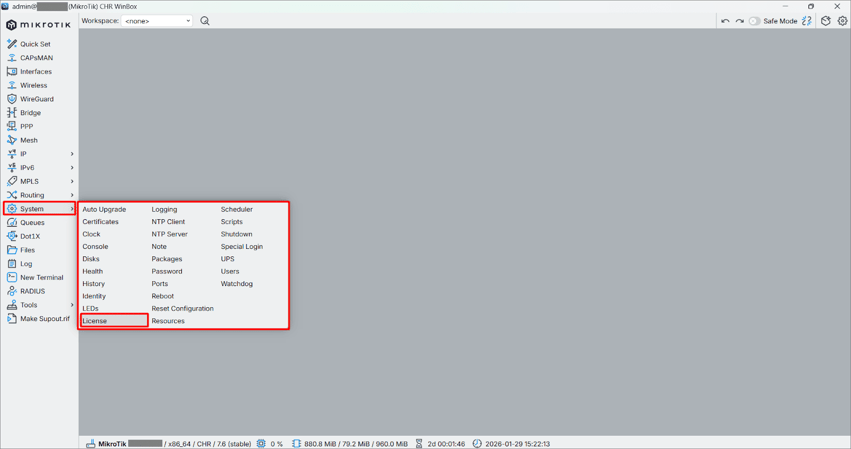
- A reboot is required for the key to take effect.
Need some help?
Just contact us — we will quickly find a solution for your tasks.
Performance and Security Tips for Working with MikroTik CHR on VPS
In this section, you'll find helpful tips to optimize the performance and security of your MikroTik CHR router, so your VPS router remains fast, stable, and easily recoverable in the event of issues.
Recommendations for a VPS environment:
- Use a KVM-based VPS for best CHR compatibility and performance.
- Restrict WinBox/SSH access to only trusted IP addresses.
- Disable unused services such as Telnet and FTP, and where possible, use strong passwords and multi-factor authentication.
- Check CPU/RAM usage; firewall and VPN rules can quickly increase load.
General optimization settings:
- Enable FastTrack, if compatible with your firewall/VPN setup, to increase throughput.
- Keep your firewall rules clean and functional by removing invalid connections and allowing established/associated connections.
- Avoid unnecessary logging and connection tracking.
Backup and Maintenance:
- Create regular backups to help your router quickly recover from changes or failures.
- Create a RouterOS backup file:
/system backup save
- Export the configuration for portability:
/export file=config-backup
- Store backups outside the VPS, such as on a local PC or in a secure location.
- Keep CHR up to date; regular updates improve security and stability.
- Check for updates:
/system package update check-for-updates
- Install updates:
/system package update install
- Reboot the device if necessary, then verify the changes after updating.
Common Problems and Troubleshooting
Here are examples of common issues when working with MikroTik CHR on a VPS, and how to troubleshoot them.
|
Problem |
Troubleshooting |
|
No Internet access |
|
|
Loss of access to the router |
|
|
VPS network issues |
/system license generate-new-id |
Conclusion
We hope this article provides a helpful step-by-step guide for quickly and confidently launching your own virtual router. By running MikroTik CHR on a VPS, you get a powerful virtual router with the full range of RouterOS features.
VPS for VPN
Stay anonymous online with a dedicated IP, and don't endanger your personal data.
From $6.99/mo