
Ollama on a laptop serves one person, and only while the lid is open. This guide turns it into an Ollama server on a VPS that your whole team can reach over HTTPS with an API key, using the same OpenAI-style calls their tools already make. You need an Ubuntu 24.04 server, a domain name, and root SSH access.
Why Running Ollama Locally Isn't Enough for a Team
For a team of five or more, local Ollama breaks down in three places: only one machine can reach it, the laptop caps model size and speed, and nothing anyone builds with it is shared. By default, Ollama listens only on 127.0.0.1:11434, so no other computer can connect without reconfiguration (Ollama FAQ). If more than one person depends on the model, move it to a server.
Access from a single machine
If you run AI locally on one developer's laptop, every script and teammate that points at it stops working when that laptop sleeps. Opening the port to the office network doesn't fix much, because the local API has no login at all: Ollama's docs state that the local API "does not require authentication" (Ollama API docs).
The laptop performance ceiling
You can run an LLM locally on a 16 GB laptop, but a 9B model like qwen3.5:9b is a 6.6 to 7.6 GB download (the range ollama.com lists) before it holds any conversation, and it shares RAM with the browser and IDE. Ollama also processes one request per model at a time unless you change OLLAMA_NUM_PARALLEL, so a second user waits in line.
No shared context
Prompts, model choices, and custom Modelfiles live on one person's disk. A shared server gives the team a single model list and one place to decide who can use which model.
Ollama Server vs Ollama Cloud vs Cloud AI APIs
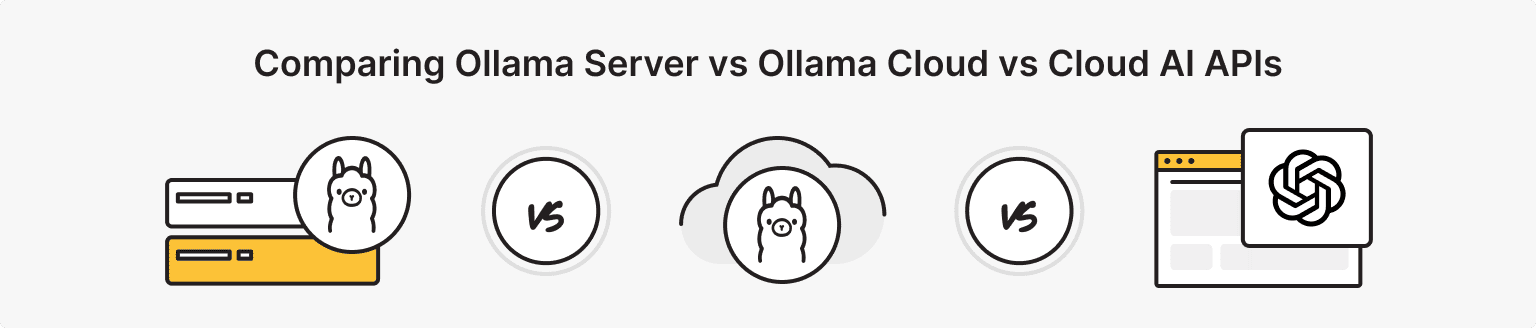
For teams with steady daily use or data they can't send to a third party, an Ollama server keeps prompts on hardware you control for a flat monthly fee, while Ollama Cloud and cloud AI APIs bill per token and process prompts on the vendor's machines. Ollama's pricing page says its cloud models run on infrastructure hosted "primarily in the United States," with usage "measured in tokens at each model's rates" (Ollama pricing). If your prompts include client data, start with the first column below.
Ollama Cloud is Ollama's hosted service: it runs your prompts on Ollama's servers, and its privacy policy says that content is processed "transiently" to serve the request (Ollama privacy policy). An Ollama VPS is your private Ollama cloud: the same API on a machine you rent and control.
|
criteria |
Self-hosted on a VPS |
Ollama Cloud |
Cloud AI API (OpenAI) |
|
Where prompts go |
Your server only |
Ollama's servers, primarily in the US, sometimes routed to Europe |
OpenAI's servers |
|
Who controls the models |
You: pull, pin and remove model versions |
Ollama's hosted model list |
OpenAI's model list and retirement schedule |
|
Pricing model |
Flat server rent, e.g. Exclusive VPS from $76.49/month billed annually |
Free $0, Pro $20/month ($60 usage credits), Max $100/month ($300 credits), Team $500/month (early access) |
Per token: GPT-6.1 Sol $2 input / $10 output per 1M tokens; GPT-6 Luna $0.10 / $0.50 |
|
Latency and limits |
Network round trip to your chosen location plus local inference; our T4 test returned the first token of a 9B model in 0.1 s |
Concurrent requests capped by plan: 1 on Free, 3 on Pro, 10 on Max and Team |
Vendor rate limits and queue |
Sources: Ollama pricing, OpenAI API pricing. Prices checked October 2026.
Latency is where location matters. is*hosting runs VPS plans in 40+ locations, so you can place the server in the same region as your office instead of routing every prompt across an ocean. For a per-team cost calculation across all three options, see our AI implementation strategy guide.
How to Deploy Ollama on a VPS as a Team API Server: Step-by-Step
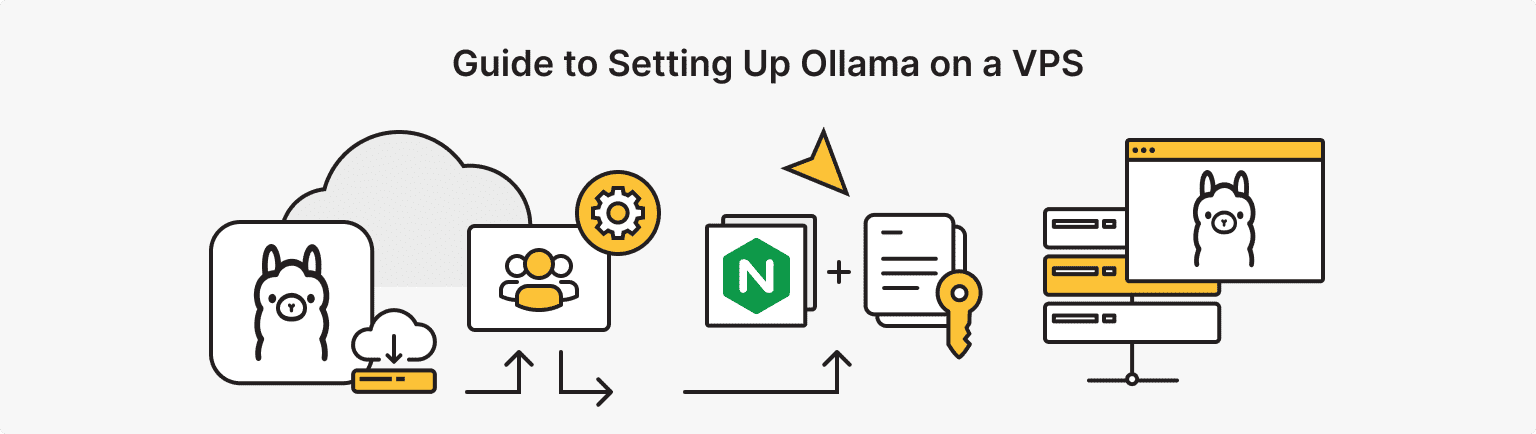
The full setup takes about 15 minutes. Here's exactly what to do. On our CPU test server, the commands themselves ran for about four minutes, most of it model downloads; the rest is creating a DNS record and checking output.
Before you start, have these ready:
- An Ubuntu 24.04 server. At is*hosting checkout, choose Ubuntu, then v. 24.
- Root SSH access, included on every is*hosting plan, so no command below needs sudo.
- A domain or subdomain (YOUR_DOMAIN below) with an A record pointing to the server's IP.
- Tested versions: Ollama 0.40.6 (the image-upload check in Step 3 ran on 0.40.11), nginx 1.24.0, Ubuntu 24.04.5 LTS.
Step 1. Install Ollama
curl -fsSL https://ollama.com/install.sh | sh
ollama --version
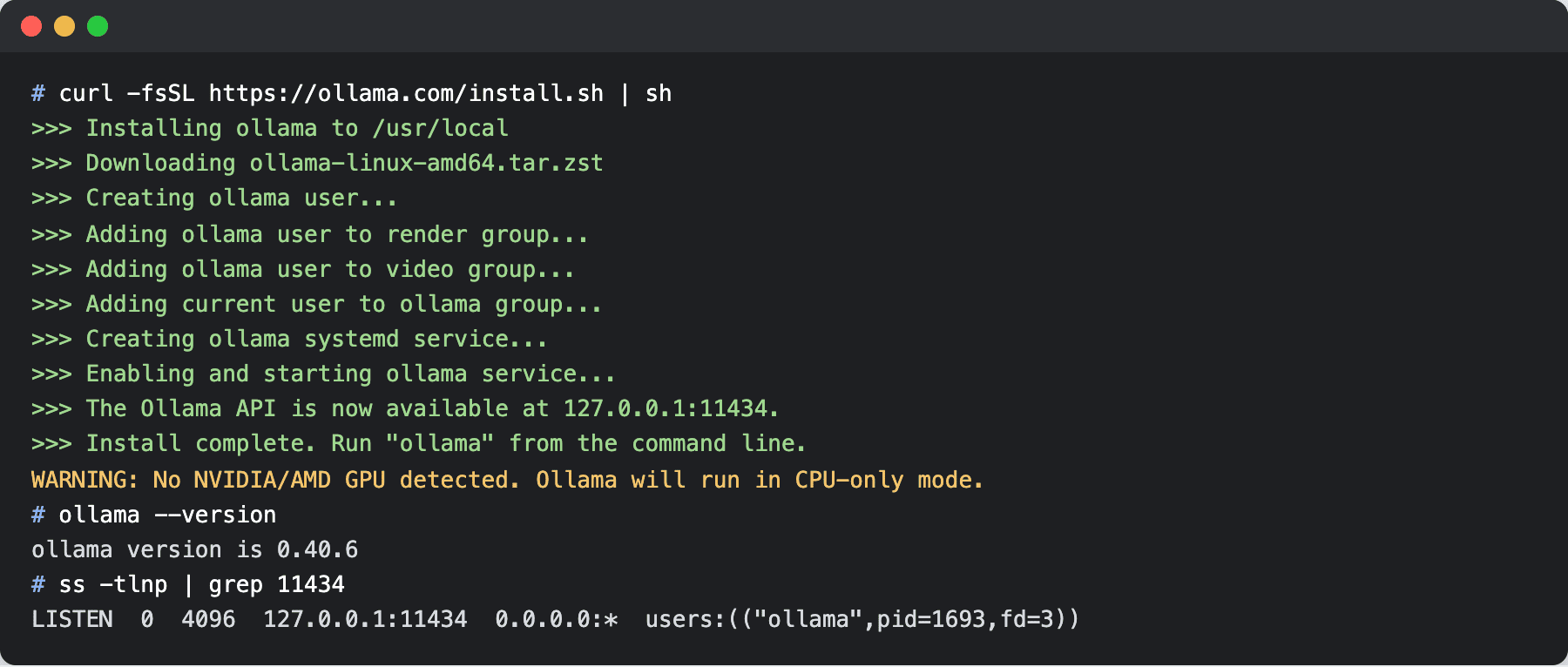
On our 8-vCPU test server the installer finished in 14 seconds and printed >>> The Ollama API is now available at 127.0.0.1:11434. followed by >>> Install complete. Run "ollama" from the command line. On a CPU-only VPS you also get WARNING: No NVIDIA/AMD GPU detected. Ollama will run in CPU-only mode. That warning is expected.
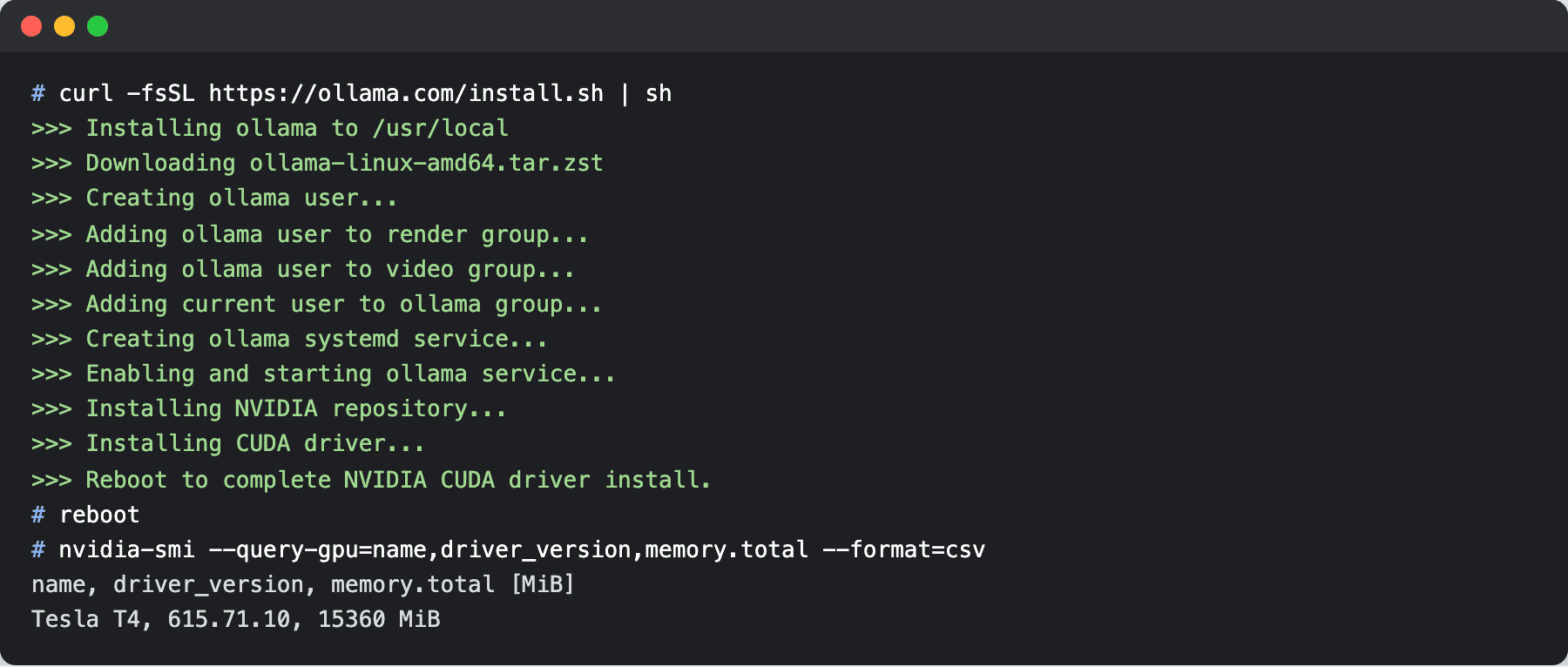
On a GPU server with no NVIDIA driver installed yet, the same script adds NVIDIA's repository, installs the CUDA driver, and ends with >>> Reboot to complete NVIDIA CUDA driver install. On our Tesla T4 test machine, that took 269 seconds. Reboot, then confirm the card with nvidia-smi.
Step 2. Configure the service for several users
Ollama reads its settings from environment variables on the systemd service. Write them to an override file:
mkdir -p /etc/systemd/system/ollama.service.d
cat > /etc/systemd/system/ollama.service.d/override.conf << 'EOF'
[Service]
Environment="OLLAMA_NUM_PARALLEL=4"
Environment="OLLAMA_CONTEXT_LENGTH=8192"
Environment="OLLAMA_KEEP_ALIVE=30m"
EOF
systemctl daemon-reload && systemctl restart ollama
journalctl -u ollama --no-pager | grep "server config" | tail -1
The last line prints the settings Ollama loaded at startup. Look for OLLAMA_NUM_PARALLEL:4 in it. Leave OLLAMA_HOST at its default of 127.0.0.1, because Nginx will be the only public entry point.
Step 3. Put Nginx, TLS, and an API key in front
Ollama has no built-in user accounts, and its FAQ shows how to put it behind a proxy such as Nginx; the FAQ's example uses the same proxy_set_header Host localhost:11434; line as the config below. Generate one key per team or per app:
apt-get update && apt-get install -y nginx certbot python3-certbot-nginx
openssl rand -hex 32
Then write the site config, replacing YOUR_DOMAIN and YOUR_TEAM_KEY:
cat > /etc/nginx/sites-available/ollama << 'EOF'
map_hash_bucket_size 128;

map $http_authorization $ollama_key_ok {
    default 0;
    "Bearer YOUR_TEAM_KEY" 1;
}

server {
    listen 80;
    server_name YOUR_DOMAIN;

    location / {
        if ($ollama_key_ok = 0) {
            return 401;
        }
        proxy_pass http://127.0.0.1:11434;
        proxy_set_header Host localhost:11434;
        proxy_http_version 1.1;
        proxy_buffering off;
        proxy_read_timeout 600s;
        client_max_body_size 50m;
    }
}
EOF
ln -s /etc/nginx/sites-available/ollama /etc/nginx/sites-enabled/
rm -f /etc/nginx/sites-enabled/default
nginx -t && systemctl reload nginx
certbot --nginx -d YOUR_DOMAIN --redirect
ufw allow OpenSSH && ufw allow 'Nginx Full' && ufw --force enable
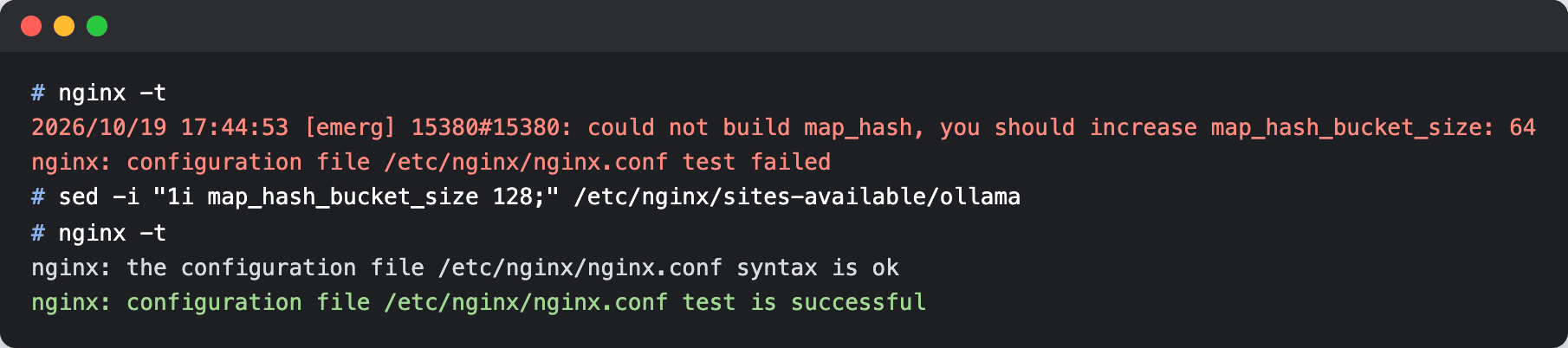
Three lines in that config fix errors we hit during testing. Without map_hash_bucket_size 128;, nginx -t fails with could not build map_hash, you should increase map_hash_bucket_size: 64, because a 64-character key is longer than the default bucket.
Without proxy_set_header Host localhost:11434;, Ollama answers every proxied request with 403: when it listens on localhost, it rejects requests whose Host header names another domain. Ollama runs directly on the host here, not in Docker, so the ufw rules apply to it normally, and port 11434 never leaves localhost.
Without client_max_body_size 50m;, larger image prompts fail. Nginx caps request bodies at 1 MB by default, and images travel base64-encoded inside the request, so in our test a 1.2 MB image (a 1.64 MB request) sent to the multimodal gemma4:e2b came back as 413 Request Entity Too Large. With the line in place, the same request returned a description of the image.
Step 4. Pull your models
ollama pull qwen3.5:9b
ollama pull gemma4:12b
ollama list
On our test server, qwen3.5:4b (3.3 to 4.0 GB on ollama.com) downloaded in 31 seconds, qwen3.5:9b (6.6 to 7.6 GB) in 57 seconds and gemma4:12b (7.7 to 8.0 GB) in 81 seconds. Your times depend on the location's bandwidth.
Step 5. Test with a request
From any machine outside the server:
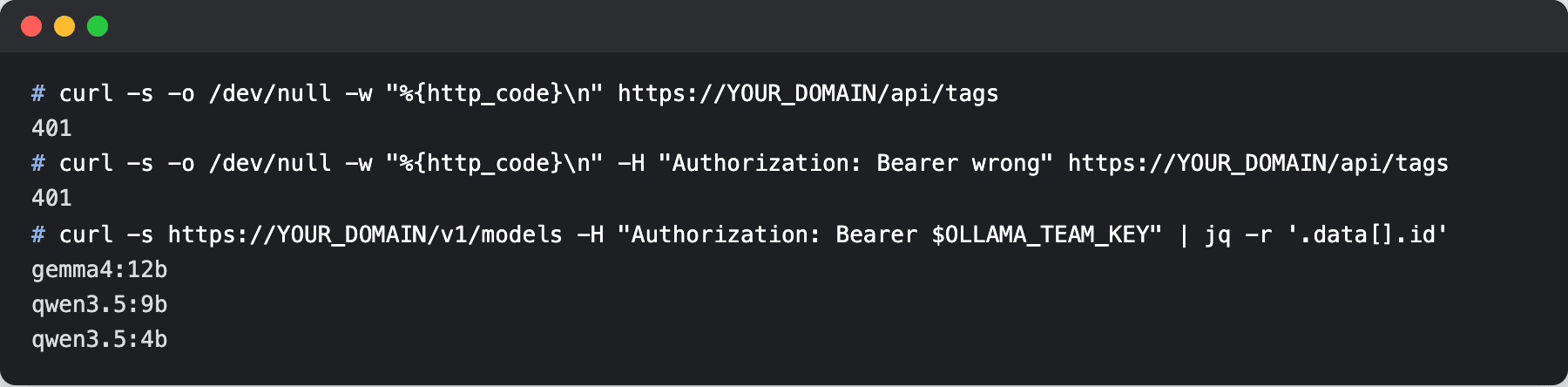
curl -s -o /dev/null -w "%{http_code}\n" https://YOUR_DOMAIN/api/tags
curl -s https://YOUR_DOMAIN/v1/chat/completions \
  -H "Authorization: Bearer YOUR_TEAM_KEY" \
  -H "Content-Type: application/json" \
  -d '{"model":"qwen3.5:9b","messages":[{"role":"user","content":"Reply with one sentence: what is a reverse proxy?"}]}'
The first command should print 401. The second returns a normal chat.completion JSON object.
For running Ollama in Docker Compose and a longer production hardening checklist, follow our Clawdbot with Docker and Ollama guide instead of repeating it here.
VPS
Run your own Ollama server on a VPS with full root access, a dedicated IPv4, and 40+ locations to choose from.
Connecting Your Team to the Ollama Server
Scripts, internal tools and most IDE plugins connect the same way they'd connect to OpenAI, with a base URL ending in /v1 plus an API key, because Ollama implements the OpenAI chat, completions, models and embeddings endpoints. Ollama's docs note that the client "requires an API key value, but Ollama ignores it" (OpenAI compatibility), which is why the key check lives in Nginx. Hand out the URL and key, and most tools work unchanged.
Scripts and internal tools
This snippet ran unchanged against our test server with the official openai Python package, version 3.35.1:
import os
from openai import OpenAI

client = OpenAI(
    base_url="https://YOUR_DOMAIN/v1",
    api_key=os.environ["OLLAMA_TEAM_KEY"],
)
resp = client.chat.completions.create(
    model="qwen3.5:9b",
    messages=[{"role": "user", "content": "Summarize this ticket in one line."}],
)
print(resp.choices[0].message.content)
IDE plugins
Continue takes an apiBase for a remote Ollama instance, and its config accepts custom headers under requestOptions, so it can send the Bearer key. The official Ollama extension for VS Code exposes ollama.endpoint and ollama.headers settings. In JetBrains AI Assistant, the Ollama provider asks only for a URL, so it can't send the key. Use the OpenAI-compatible provider under Settings | Tools | AI Assistant | Providers & API keys instead, with https://YOUR_DOMAIN/v1 as the URL and your team key as the API key. JetBrains doesn't assign models from an OpenAI-compatible endpoint to AI Assistant features automatically, so assign them after the connection test (JetBrains docs).
A chat interface
For people who want a ChatGPT-style window, put Open WebUI in front of the same server. It comes with built-in user accounts, an admin panel and per-model access control, and is*hosting's own ai.ishosting.com runs on it. Our Open WebUI guide covers the setup.
How Ollama handles several users at once
Each loaded model serves up to OLLAMA_NUM_PARALLEL requests at once, and Ollama's FAQ warns that required memory "will scale by OLLAMA_NUM_PARALLEL * OLLAMA_CONTEXT_LENGTH." Extra requests wait in a queue of up to 512 (OLLAMA_MAX_QUEUE) before Ollama returns 503. Idle models unload after OLLAMA_KEEP_ALIVE, five minutes by default, and the next request pays the load time again.
In our tests on a Tesla T4, gemma4:12b with four parallel slots served four users at 31 to 33 tokens per second each. With eight slots and an 8K context it served eight users at 19 to 22 tokens per second each and used 14.5 of the card's 15.4 GB.
qwen3.5 models processed requests one at a time on both CPU and GPU, even with four slots configured. That's a scheduler limitation for the qwen3.5 architecture: when the model loads, Ollama logs model architecture does not currently support parallel requests and serves it one request at a time. Test parallelism with the exact model you plan to share.
When Data Privacy Makes Self-Hosted Non-Negotiable
For clinics, health-tech teams, law firms, and in-house legal departments, self-hosted AI becomes the safer default, because sending health records or privileged material to a third-party AI service creates legal exposure. In February 2026 a federal court in New York ruled that documents a defendant generated with a public AI chatbot were not protected by attorney-client privilege (United States v. Heppner). If your staff paste client or patient details into AI tools, keep the model on infrastructure you control.
HIPAA and health data
HHS guidance treats a cloud provider that stores or processes electronic protected health information as a business associate that must sign a business associate agreement (BAA), even when it holds only encrypted data without the key (HHS cloud computing guidance). OpenAI offers a BAA for specific API endpoints after a signed addendum and retention setup (OpenAI data controls). Ollama's pricing, privacy and terms pages don't mention HIPAA or a BAA.
Teams that self-host an LLM remove the model vendor from the data path. It doesn't make a deployment compliant on its own: you still need access controls, audit logs and encryption, and the BAA question moves to whoever hosts the server, so settle it before any patient data reaches the box.
Attorney-client privilege
In Heppner, Judge Jed Rakoff of the Southern District of New York held that about 31 documents a defendant generated with a public AI platform were protected by neither privilege nor the work product doctrine. The court pointed to the platform's privacy policy, which allowed inputs to be used for training and disclosed to third parties.
The ABA's Formal Opinion 512 (July 2024) applies the duty of confidentiality to lawyers' use of generative AI tools. Keeping prompts on a server you control keeps them out of a third-party privacy policy, one of the reasons the Heppner court gave.
What VPS Configuration Do You Need for Ollama?
Size the server by model memory first, then by how many people send requests in the same minute: an Ollama VPS on CPU suits a pilot or one to three users, and shared daily use needs a GPU. In our tests qwen3.5:9b used 6.2 GB of RAM and generated 4.0 tokens per second on CPU, while the same model on a Tesla T4 generated 33 tokens per second. Budget for a GPU server as soon as replies need to arrive in seconds.
CPU rows were measured on an 8-vCPU Xeon server (2.3 GHz) with 32 GB of RAM, the same core count and memory as the is*hosting Exclusive plan. GPU rows used an NVIDIA Tesla T4 16 GB. Each reply was 200 tokens.
|
Model (download size) |
Concurrent requests |
Memory used |
GPU |
Measured speed |
|
qwen3.5:4b (3.3 to 4.0 GB) |
1 |
3.1 GB RAM |
None |
6.1 tokens/s; reply in 32 s |
|
qwen3.5:9b (6.6 to 7.6 GB) |
1 |
6.2 GB RAM |
None |
4.0 tokens/s; reply in 51 s |
|
gemma4:12b (7.7 to 8.0 GB) |
4 |
8.7 GB RAM |
None |
1.3 tokens/s each; all four done in 170 s |
|
qwen3.5:9b (6.6 to 7.6 GB) |
1 |
6.4 GB VRAM |
Tesla T4 16 GB |
33 tokens/s; reply in 6 s |
|
gemma4:12b (7.7 to 8.0 GB) |
4 |
11.2 GB VRAM |
Tesla T4 16 GB |
31 to 33 tokens/s each; all four done in 7 s |
|
gemma4:12b, 8K context |
8 |
14.5 GB VRAM |
Tesla T4 16 GB |
19 to 22 tokens/s each; all eight done in 11 s |
|
gpt-oss:20b (14 GB) |
4 |
12.8 GB VRAM |
Tesla T4 16 GB |
20 tokens/s each; all four done in 11 s |
For a CPU pilot, the Exclusive VPS (8 CPU, 32 GB RAM, 100 GB SSD) starts from $76.49/month billed annually (prices vary by location) and fits any CPU model in the table with room to spare. Plan disk as well: the Ollama runtime alone took 2.1 GB before any model. Every is*hosting plan includes a dedicated IPv4 address, which your DNS record needs, plus weekly VPS backups, and RAM or storage can be added later without reprovisioning.
For shared use, is*hosting GPU servers take a Tesla T4 16 GB or an NVIDIA L4 24 GB. The NL4-8 (AMD EPYC 7702P, 256 GB RAM) with the Tesla T4 we benchmarked costs $693.75/month billed annually. The NL3-22 (AMD Ryzen 7 7600X, 64 GB RAM) with an L4 costs $409.17/month billed annually, but it was pre-order only on October 28, 2026. Both prices are for the Netherlands, from the configurator on that date.
An AI PC for business, a desktop with a strong local GPU, is a good fit for one to three power users who want to run AI locally at their desk. Once five people share one model, a GPU server for AI is the better fit, because it stays on and sits behind one access policy.
What You've Got Running
You now have an Ollama server that installed in 14 seconds, answers only HTTPS requests carrying your team key, and serves up to four requests in parallel (the OLLAMA_NUM_PARALLEL value) for models that support it, such as gemma4:12b. On CPU, qwen3.5:9b uses 6.2 GB of RAM and writes about 4 tokens per second; on a Tesla T4 the same model writes 33.
The CPU setup in this guide, your Ollama VPS, fits the Exclusive plan, 8 CPU, 32 GB RAM and 100 GB SSD, from $76.49/month billed annually on the is*hosting VPS page. When the team outgrows it, move the same configuration to a GPU server. If you plan to build paid tools on top of it, read how to make money with AI agents.