
Modern monitoring stacks can be heavy. For a small VPS or a side project, setting up Prometheus and dashboards often takes more time than the first issues you’re trying to catch.
For a massive enterprise cluster, those tools are undoubtedly necessary. But for a personal VPS, a small client project, or a staging environment, they’re overkill.
A surprisingly effective monitoring toolkit is already on your server: the Linux terminal commands.
With a small Bash script and cron, you can build a lightweight monitoring setup with minimal overhead and no extra agents required. And it forces you to learn how Linux and your system work.
This guide focuses on a DIY approach using standard Linux command line tools.
Why Simple Is Sometimes Better
Complex monitoring systems introduce a new point of failure. If the monitoring agent crashes, who monitors the monitor?
When you stick to the Linux command line, you’re relying on the kernel and standard utilities that have been stable for decades.
- No heavy Java agents eating your RAM.
- No monthly subscription fees for metric ingestion.
- You define exactly what "healthy" looks like.
If you’re renting a VPS, you want those resources serving your users, not running background analytics processes.
Prerequisites and Tools: How to Use Linux Terminal
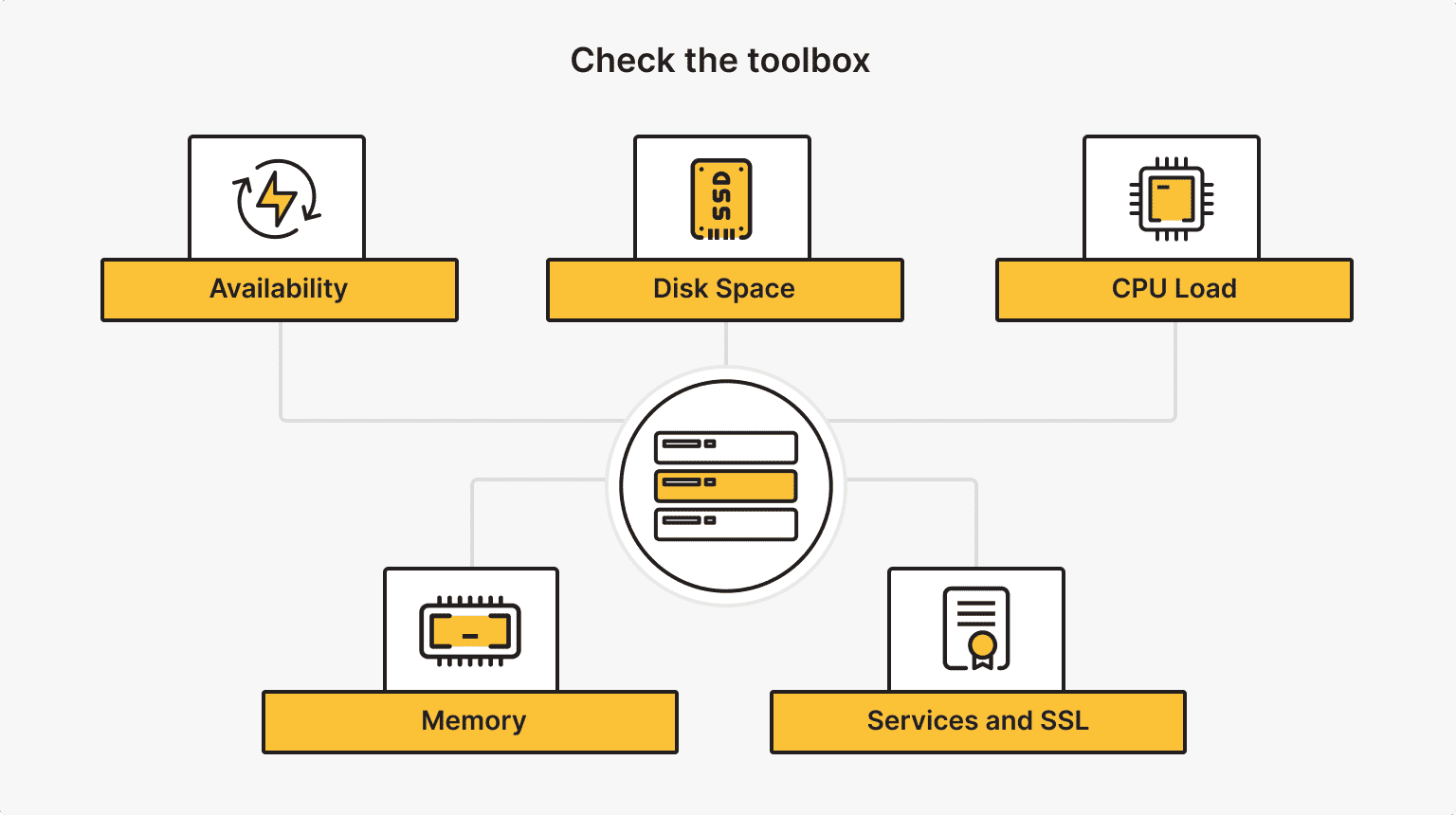
Before we write code, let’s make sure your toolbox is ready. You don’t need to install much — most of these Linux terminal commands come preinstalled on standard distributions like Ubuntu, Debian, or Rocky Linux.
You’ll need basic SSH access to your server. Once you’re in, check that these utilities are available:
- bash: The shell we’ll use for scripting.
- curl: For checking website status codes.
- awk/grep: For parsing text output.
- df: For checking disk space.
- free: For checking memory usage.
- openssl: For checking SSL certificate expiry.
Security First
Don’t run your monitoring scripts as the root user unless absolutely necessary. Create a dedicated user for maintenance or use your standard non-root user.
Once we create the script, lock down permissions using standard Linux shell commands:
chmod 700 monitor.sh
This ensures that only the owner can read, write, or execute the script.
The Metrics
We’re not going to track everything. The goal is to track the "Signal Level Indicators" (SLIs).
1. Availability (Is It Up?)
We need to know if the web server is returning a 200 OK status. We also want to see if it’s slow. If the server takes 30 seconds to reply, it might as well be down.
2. Disk Space (Will It Crash Soon?)
Running out of disk space is the silent server killer. Logs pile up, update cache files, and suddenly MySQL crashes because it can’t write to the partition. We’ll set a threshold (typically 80% or 90%) to trigger an alert.
3. CPU Load (Is It Melting?)
Load average is often misunderstood. A load of 1.0 on a single-core CPU means it’s fully utilized. We’ll check the 1-minute load average to see whether the server is struggling to keep up with requests.
4. Memory (Are We Swapping?)
Linux loves to use free RAM for caching, which is a good thing. But when available memory drops too low and the system starts swapping to disk, performance tanks. We need Linux command-line tools to monitor the available memory, not just free memory.
5. Services and SSL
Is nginx actually running? Is your SSL certificate about to expire in 48 hours and trigger a browser security warning for all your users?
Building the health.sh Script

This is the core of our solution. We’re going to write a single Bash script that checks all of these metrics.
If you’re learning how to use Linux command line scripting, this is a great practical exercise. We’ll use a modular structure so you can easily add more checks later.
Create a file named health.sh:
nano health.sh
Paste in the following code.
Replace the WEBHOOK_URL with your actual Slack, Discord, or generic webhook URL. Also adjust TARGET_URL and SSL_DOMAIN.
#!/bin/bash
# Configuration
THRESHOLD_DISK=90
THRESHOLD_CPU=2.0
THRESHOLD_MEM=500 # Minimum MB free
TARGET_URL="https://google.com"
SSL_DOMAIN="google.com"
WEBHOOK_URL="https://your-webhook-url-here"
HOSTNAME=$(hostname)
# Function to send alerts
send_alert() {
MESSAGE="CRITICAL: $1 on $HOSTNAME"
# Send to a webhook (Simpler/More reliable than local mail)
curl -H "Content-Type: application/json" \
-d "{\"content\": \"$MESSAGE\"}" \
$WEBHOOK_URL
# Optional: Log to syslog
logger "HEALTHCHECK_ALERT: $1"
}
# 1. Check Disk Usage
DISK_USAGE=$(df / | grep / | awk '{ print $5 }' | sed 's/%//g')
if [ "$DISK_USAGE" -gt "$THRESHOLD_DISK" ]; then
send_alert "Disk usage is at ${DISK_USAGE}%"
fi
# 2. Check CPU Load (1 min avg)
CPU_LOAD=$(awk '{print $1}' < /proc/loadavg)
# Bash doesn't handle floats well, so we use awk for comparison
IS_HIGH_LOAD=$(echo "$CPU_LOAD $THRESHOLD_CPU" | awk '{if ($1 > $2) print 1; else print 0}')
if [ "$IS_HIGH_LOAD" -eq 1 ]; then
send_alert "High CPU Load: ${CPU_LOAD}"
fi
# 3. Check Memory (Available in MB)
MEM_AVAIL=$(free -m | grep "Mem:" | awk '{print $7}')
if [ "$MEM_AVAIL" -lt "$THRESHOLD_MEM" ]; then
send_alert "Low Memory: Only ${MEM_AVAIL}MB available"
fi
# 4. Check Website Availability (HTTP 200)
HTTP_CODE=$(curl -s -o /dev/null -w "%{http_code}" "$TARGET_URL")
if [ "$HTTP_CODE" -ne 200 ]; then
send_alert "Website $TARGET_URL is down (Status: $HTTP_CODE)"
fi
# 5. Check SSL Expiry (Days remaining)
EXPIRY_DATE=$(echo | openssl s_client -servername "$SSL_DOMAIN" -connect "$SSL_DOMAIN":443 2>/dev/null | openssl x509 -noout -enddate | cut -d= -f2)
EXPIRY_EPOCH=$(date -d "$EXPIRY_DATE" +%s)
CURRENT_EPOCH=$(date +%s)
DAYS_REMAINING=$(( ($EXPIRY_EPOCH - $CURRENT_EPOCH) / 86400 ))
if [ "$DAYS_REMAINING" -lt 14 ]; then
send_alert "SSL Certificate for $SSL_DOMAIN expires in $DAYS_REMAINING days"
fi
echo "Health check complete."
Script Details
This script uses standard Linux shell commands to query the kernel directly.
- df /: Checks the root partition.
- /proc/loadavg: Reads the load average directly from the virtual file system.
- curl: Checks whether your site is alive. We use the -s (silent) flag so it doesn’t clutter your logs.
- openssl: Connects to port 443, grabs the cert, and does some date math.
For more on managing server security, check out our guide on Linux server security basics.
Setting Up Alerts
In the script above, we used a webhook for alerting. Why not email?
While mail or sendmail are classic Linux terminal commands, getting messages to actually land in your inbox (and not your spam folder) is difficult. You need properly configured SPF, DKIM, and DMARC records.
For simple monitoring, sending a request to a Slack, Discord, or Telegram webhook is faster, easier, and safer:
- Instant notifications on your phone.
- No Postfix configuration required.
- No need to open an SMTP port on your server.
If you do need to use email, you can replace the curl command in the send_alert function with:
echo "$MESSAGE" | mail -s "Server Alert" [email protected]
How to Use Linux Terminal Automating with Cron
A script is useless if you have to run it manually. This is where cron comes in as the timekeeper of the Linux command line.
To schedule your server health check, open your crontab:
crontab -e
We want to run this check frequently, but not so often that it creates an endless stream of false positives. Every 5–10 minutes is usually the sweet spot for simple setups. You can then tweak this duration as you see fit.
Add this line to the bottom of the file:
*/5 * * * * /home/youruser/health.sh >> /var/log/myhealth.log 2>&1
Breaking Down the Cron Syntax
- */5: Run every 5 minutes.
- * * * *: Every hour, every month, every day of the week.
- /home/youruser/health.sh: The path to your script.
- >> /var/log/myhealth.log: Append the output (stdout) to a log file.
- 2>&1: Send errors (stderr) to the same file as the standard output.
If you are new to scheduling, understanding how to use Linux command line tools like Cron is a superpower. It turns a static server into an automated worker.
Logging and Rotation
We write output to /var/log/myhealth.log. Over time, this file will grow. If we don’t manage it, our own monitoring logs will trigger the "Disk Full" alert we’re trying to prevent.
Linux handles this with logrotate. It’s one of those Linux terminal commands that runs quietly in the background, compressing and deleting old logs.
Create a config file for your log:
sudo nano /etc/logrotate.d/myhealth
Add this configuration:
/var/log/myhealth.log {
    weekly
    rotate 4
    compress
    missingok
    notifempty
}
This configuration tells the system to rotate the log once a week, keep four weeks of backlogs, compress old logs to save space, and don’t panic if the file is missing.
Prove It Works
Never trust a monitoring system you haven’t seen fail. You need to simulate a disaster to make sure your alerts actually reach you.
- Fake a disk space issue. Edit your health.sh and temporarily change THRESHOLD_DISK to 1. Run the script manually with ./health.sh. Did you get an alert?
- Fake a web failure. Change TARGET_URL to https://google.com/this-page-does-not-exist. Run the script. It should return a 404 and trigger the alert.
- Fake high load. You can run stress or cat /dev/zero > /dev/null for a few seconds (kill it quickly!) to spike CPU usage, but adjusting the threshold in the script is safer for production environments.
Final Thoughts and When to Scale Up

This setup is perfect for individual servers. It helps you master the Linux terminal and understand how to use Linux terminal in the most effective way.
However, if you are managing hundreds of servers, updating this script on every single one quickly becomes a nightmare. At that point, consider tools like Ansible for automation or Zabbix for centralized monitoring.
You now have a functional, custom monitoring system that costs pretty much nothing, allowing you to potentially apply the same logic across various scenarios and servers.
Virtual Private Server
Configure a VPS through the built-in terminal and maintain complete control.
From $5.94/mo