Nextcloud is a self-hosted stand-in for Google Drive and Dropbox: file sync and sharing, calendar, contacts, and in-browser document editing, all running on a server you control instead of rented space on someone else's.
Where a shared Google One plan or a Dropbox family folder hands you a fixed quota split across services you never asked to share, billed per seat and per tier, Nextcloud runs on one flat VPS fee, with storage you expand only when you actually need it and accounts, retention, and versioning under your own admin panel.
This guide installs it on a real is*hosting Medium VPS using the official All-in-One Docker method, from a blank server to a working instance.
What You Need Before Setup
- A domain or subdomain you control, with its DNS A record already pointed at the VPS before starting the setup wizard. AIO validates this domain live during setup and will not proceed against a bare IP address.
- Docker installed on the host. It is not pre-installed on any is*hosting VPS plan.
- Root SSH access, included by default on every plan.
AIO's own interface states its real floor directly: 2GB of RAM and a dual-core CPU once any single optional container is switched on, climbing to 3GB if that container is ClamAV, Talk Recording, or Fulltextsearch, and 5GB with a quad-core CPU if everything is enabled at once.
|
Use case |
RAM |
CPU |
is*hosting plan |
|
Core stack (office suite is always included), plus Talk, Imaginary, or Whiteboard |
4 GB |
3 CPU |
Medium VPS |
|
Add ClamAV, Talk Recording-server, or Fulltextsearch |
8 GB |
4 CPU |
Premium VPS |
|
Everything enabled at once |
16 GB |
6 CPU |
Elite VPS |
This guide uses the Medium plan: a real install with the core stack plus Talk, the office suite, Imaginary, and Whiteboard running together used only 1.8GB of the plan's 4GB, with 2GB still available. Every is*hosting plan includes a dedicated IPv4 by default and weekly VPS backups.
How to Install Nextcloud on a VPS
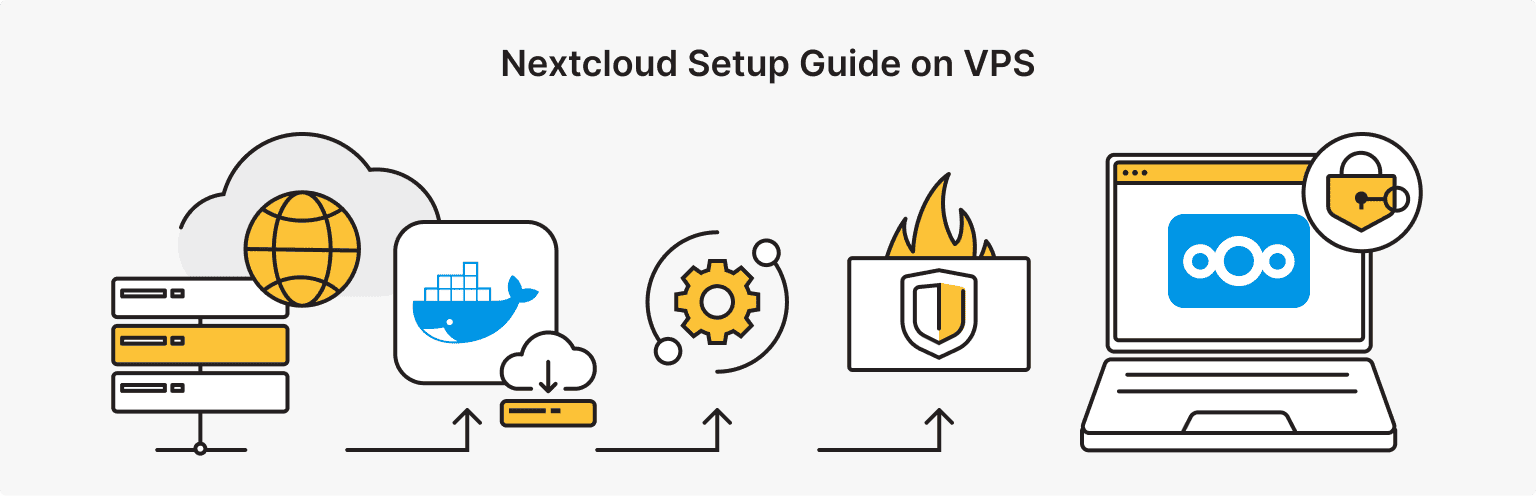
This walkthrough uses is*hosting's Medium plan with Ubuntu 24.04. Nextcloud AIO runs on Docker regardless of distribution, but firewalld-based distributions, CentOS Stream included, sometimes need a manual switch of firewalld's backend from nftables to iptables before Docker's internal container network communicates correctly. Ubuntu's ufw doesn't have that problem, which is the reason for the OS choice here.
Step 1: Provision the VPS and point a domain at it
When placing your order, select Medium VPS and choose Ubuntu v. 24 in the configurator. The dedicated IPv4 is assigned automatically. Create an A record for the subdomain you'll use (for example cloud.yourdomain.com) pointing at that IP, and give it time to propagate before moving on. AIO checks this domain against live DNS during setup, so a record that hasn't propagated yet will fail validation.
Step 2: Install Docker
curl -fsSL https://get.docker.com | sh
systemctl enable --now docker
AIO's own FAQ specifically warns against snap-based Docker installs on Ubuntu. The convenience script above installs Docker's standard package directly and never touches snap, so this is a non-issue here.
Step 3: Launch the AIO mastercontainer
docker run \
--init \
--sig-proxy=false \
--name nextcloud-aio-mastercontainer \
--restart always \
--publish 80:80 \
--publish 8080:8080 \
--publish 8443:8443 \
--volume nextcloud_aio_mastercontainer:/mnt/docker-aio-config \
--volume /var/run/docker.sock:/var/run/docker.sock:ro \
ghcr.io/nextcloud-releases/all-in-one:latest
sudo is dropped since is*hosting's Ubuntu image is already root. The container name and volume name are fixed values the update process depends on later; leave them as written. Port 80 handles the ACME certificate challenge, 8080 exposes the AIO interface over a self-signed certificate, and 8443 exposes it with a valid one once the domain resolves.
Step 4: Complete the setup wizard
Open https://<server-ip>:8080 in a browser, using the IP address rather than the domain. AIO's own docs are specific here: accessing port 8080 by domain can work briefly but tends to break once HSTS kicks in, so IP access is the intended path for this step. Accept the self-signed certificate warning.
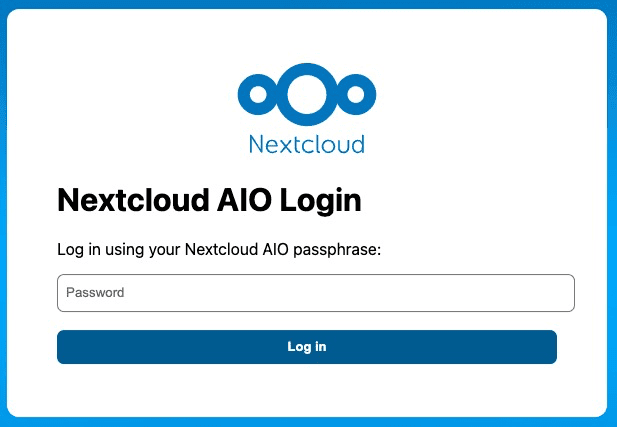
The first screen doesn't ask you to choose a password, AIO generates a passphrase for you on the spot and shows it exactly once, under a warning to note it down. That passphrase is what logs you into the AIO management interface on every future visit, not your Nextcloud account.
Once logged in, the main AIO screen offers a choice between starting a new instance or restoring a former one from backup. Under New AIO instance, enter the domain from Step 1 and click Submit domain. AIO states its requirement directly on this screen: port 443 needs to be reachable from the internet (443/UDP too, if you want HTTP/3), and the domain's DNS must already point at this server.
Below that, an "Install Nextcloud Hub 26 Spring" checkbox appears (leave it checked, unchecking it installs the previous major version instead), followed by the Download and start containers button.
Below that is the Optional Containers section: an office suite is always installed, Euro-Office is the pre-selected default, with Collabora as the alternative, and separate toggles for Talk, Talk Recording-server, ClamAV, Fulltextsearch, Imaginary, and Whiteboard. This walkthrough leaves Talk, Imaginary, and Whiteboard enabled alongside the default Euro-Office.
A Timezone change field further down lets you set Nextcloud's timezone (for example Asia/Kuala_Lumpur); it defaults to Etc/UTC if left blank, and needs its own Submit timezone click since it isn't tied to the main save.
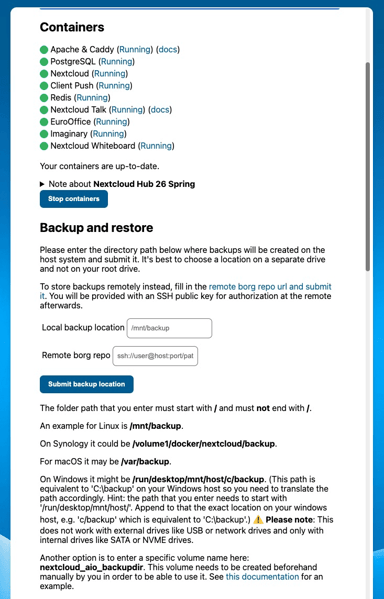
Whatever you toggle, click Save changes below the optional containers list first, changes there are not auto-saved, then click Download and start containers. A live log appears showing each container's status as <container>: Pulling image. followed by <container>: Starting container, working through the whole list until every entry turns green.
Step 5: Firewall
Check ufw's current state before touching anything, since it varies by base image (on this is*hosting Ubuntu 24.04 image it came up inactive by default):
ufw statusEnable it with an SSH allow rule first so you don't lock yourself out:
ufw allow OpenSSH
ufw enable
Every port the docker run command published, 80, 8080, 8443, and later 443, is exposed directly through Docker's own iptables rules, independent of whatever ufw is doing. A ufw deny rule against any of those ports has no effect on traffic reaching the container. With Talk enabled, its TURN server also binds 3478/tcp and 3478/udp the same way, straight through Docker, so those two need to stay reachable at the router or provider firewall level as well.
Step 6: First login
Once every container is green, the AIO screen displays an admin username and a generated password once, this is separate from the earlier AIO passphrase and belongs to your actual Nextcloud account. Use <your-generated-admin-password> as a placeholder for whatever value your own install shows, since that value should never be typed into published material verbatim. Log in at your domain over port 8443 initially; once the certificate settles, it redirects to the standard port 443.
VPS
Run Nextcloud AIO on a VPS built for it — root access from day one, a dedicated IPv4, and enough RAM headroom for the full container stack.
How to Use Nextcloud: Files, Calendar, and Euro-Office
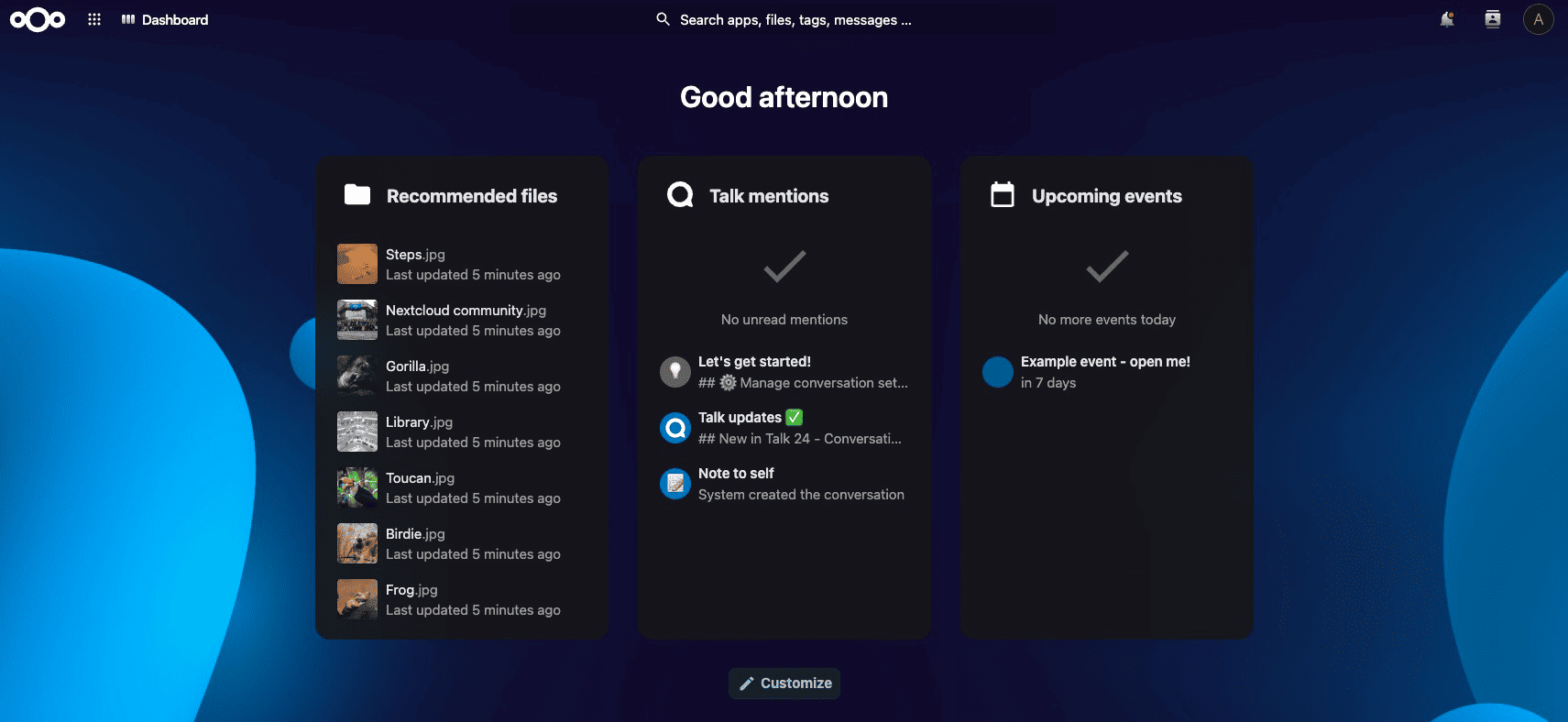
With Euro-Office enabled by default, opening any document, spreadsheet, or presentation inside Nextcloud's Files app edits it directly in the browser, no separate account or license needed since it's running as a container on the same VPS. Talk appears in the top navigation for calls and chat, and Whiteboard shows up as a file type you can create from the same Files app "New" menu.
Calendar and Contacts ship as part of Nextcloud's default startup apps, so both appear in the top navigation bar immediately after the first login, ready to connect to a phone or desktop client over CalDAV and CardDAV without any extra setup.
How to Update Nextcloud
Updates run entirely from the AIO interface rather than the command line. When a new container image is available, the interface flags it below the containers list; clicking Stop containers followed by Start and update containers pulls the new images and restarts the stack.
The mastercontainer itself updates through a separate flow in the same interface, shown only when a mastercontainer update is actually available.
Before either kind of update, turn on AIO's built-in backup (BorgBackup-based) from the same interface: it appears as a Backup and restore section once containers are running, asking for a directory path on the host, ideally a separate drive from the root disk, with a note that the path must start with / and must not end with one (/mnt/backup is AIO's own example).
A remote Borg repository URL works as an alternative to a local path. is*hosting already includes free weekly VPS backups on every plan as a baseline safety net, but that captures the entire disk. The Borg backup built into AIO restores just Nextcloud's database, files, and configuration from a single interface action, which is faster to recover from than restoring a full VPS snapshot when only the application itself needs to roll back.
FAQ

What You've Got Running
From clicking Download and start containers to Apache answering on the domain took a little over 6 minutes on this run, though the Euro-Office, Talk, Imaginary, and Whiteboard images were already cached locally from an earlier attempt in the same session, so a genuinely cold pull on a fresh VPS will run longer than that.
Post-install, the Medium plan showed 20GB of its 40GB SSD in use and 1.8GB of its 4GB RAM active, with 2GB still available, running the full core stack (Apache, PostgreSQL, Nextcloud, Client Push, Redis) plus Talk, Euro-Office, Imaginary, and Whiteboard together.
If this is your first time setting up a Linux VPS from scratch, the Linux VPS setup guide covers the basics this article assumes. For a look at another self-hosted Docker-based platform with a similar setup flow, see the Coolify guide.