Every team chat tool with a monthly per-seat bill eventually asks you to pay again for the privilege of talking to your own coworkers, and every free tier eventually caps something you need.
Chatto is a self-hosted alternative built around rooms, threads, file sharing, and voice or video calls with screen sharing, running entirely on infrastructure you control.
This guide installs Chatto on an is*hosting Medium VPS plan using the project’s own Docker Compose example, the deployment path Chatto’s documentation recommends for production use.
What You Need Before Setup
- A domain you control, plus its LiveKit subdomain (the Compose example generates livekit. prefixed to your chat domain automatically)
- SMTP credentials, needed for Chatto’s built-in email/password signup, verification emails, and password resets
- Docker CE and Docker Compose v2 (not preinstalled on any is*hosting plan; this guide installs both)
- A VPS sized for the four containers this stack runs at once: Chatto, NATS, LiveKit, and Caddy
Chatto’s own documentation does not publish a minimum RAM or CPU figure, so the sizing below reflects what’s actually running on the box, four containers plus Docker’s own overhead, with headroom for concurrent voice/video calls rather than idle chat traffic:
|
Use case |
RAM |
CPU |
is*hosting plan |
|
Text chat only, calls disabled |
2 GB |
2 CPU |
Start |
|
Small team or community with voice/video calls |
4 GB |
3 CPU |
Medium |
|
Larger community, concurrent calls, video transcoding on |
8 GB |
4 CPU |
Premium |
All is*hosting VPS plans include a dedicated IPv4 by default and weekly VPS backups. Both matter here: the IPv4 for DNS and Caddy’s automatic TLS, the backups as a floor underneath Chatto’s own backup command.
How to Install Chatto on a VPS in 5 Steps
1. Provision the VPS and point DNS at it
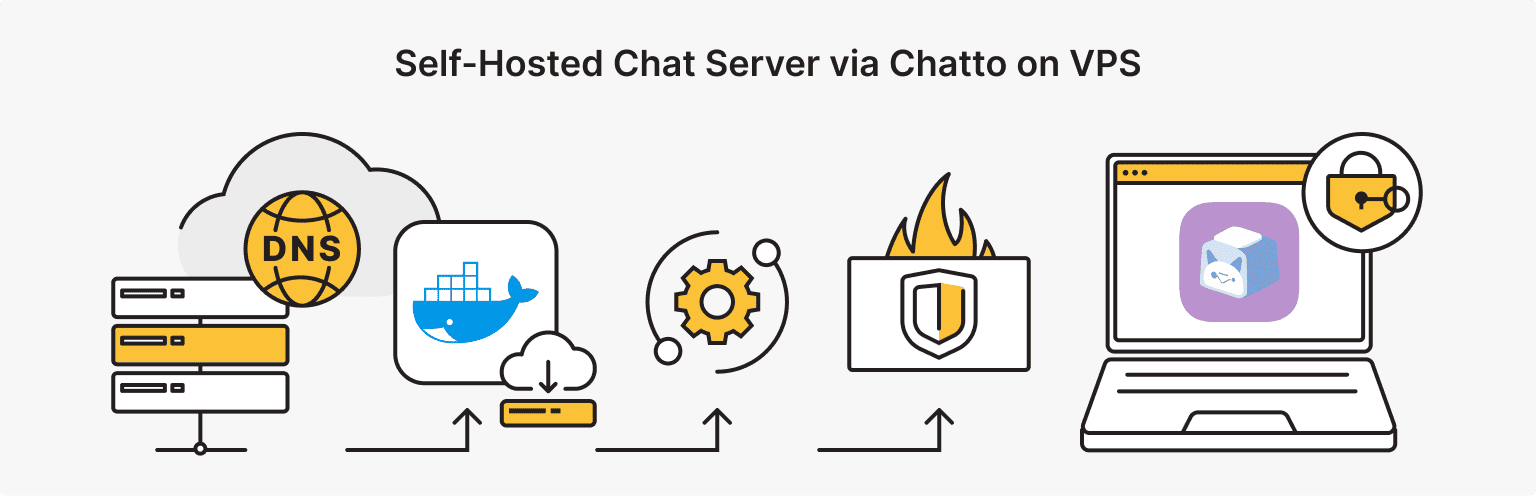
Order a CentOS 9 x64 Medium VPS. Chatto’s Docker images run on any Linux distribution with Docker installed, there’s no distro-specific install path the way there is for a tool that only ships RHEL packages, so CentOS 9 x64 is a fine default.
Provisioning confirms PRETTY_NAME="CentOS Stream 9", hostname server.domain.com, root filesystem /dev/sda1, matching the fingerprint this blog uses across CentOS guides.
Create two A records pointing at the VPS’s dedicated IPv4: your chat domain (chat.yourdomain.com) and its LiveKit subdomain (livekit.chat.yourdomain.com). Both need to resolve before Caddy can request certificates.
2. Install Docker
dnf install docker-ce fails on CentOS Stream 9 without adding Docker’s own repo first, so use the convenience script instead:
curl -fsSL https://get.docker.com | sh
systemctl enable --now docker
docker compose version
This installs Docker CE 29.6.1 and Docker Compose v5.3.1 and enables the daemon on boot in well under a minute on a fresh Medium VPS.
3. Clone the repo and generate the environment
git clone --depth 1 https://github.com/chattocorp/chatto.git
cd chatto/examples/dockercompose
./init-env.sh chat.yourdomain.com [email protected]
The script writes .env and livekit.generated.yaml with matching generated secrets: the NATS auth token, Chatto’s cookie signing and encryption keys, its core secret key, and a LiveKit API key/secret pair shared between both files. It needs openssl, which ships with CentOS Stream 9 by default.
4. Configure SMTP
Edit .env and replace the CHATTO_SMTP_* placeholders with a real mail provider’s host, port, username, and password. Direct email/password registration, verification, and password resets all depend on this; skip it and only SSO logins work.
The generated default is STARTTLS on port 587; set CHATTO_SMTP_TLS=implicit for a provider using SMTPS on port 465.
SMTP ports are blocked by default on is*hosting’s Lite and Start plans until support enables them; Medium and above are unaffected.
5. Confirm the firewall state and start the stack
Run systemctl status firewalld before touching anything else. On a fresh Medium VPS, firewalld is present but inactive and disabled, nothing has touched it, Docker included.
This stack runs entirely in Docker: Caddy publishes 80 and 443 straight to the host, LiveKit publishes 7881/tcp, 3478/udp, and 7882/udp the same way, all five owned directly by docker-proxy processes.
Docker’s own iptables rules control all five regardless of firewalld’s state. NATS’s port 4222 never shows up in ss output at all, confirming it stays inside the Compose network.
If firewalld is active on your box, confirm the ssh service is still in its allowed list so you don’t lose remote access; nothing else here needs a firewalld rule.
docker compose pull -q
docker compose up -d
docker compose ps
From a clean image pull, all four containers reported healthy or running in 1 minute 53 seconds, Docker install through the last container start.
Caddy requests both certificates from Let’s Encrypt automatically on first start; watch docker compose logs caddy for two certificate obtained successfully lines, confirming both A records resolved before the ACME challenge ran.
VPS
A KVM VPS with a dedicated IPv4 and weekly backups included — enough to run all four Chatto containers with room for voice and video, in 40+ locations near your team.
How to Use Chatto: Rooms, Threads, and Calls
Visit https://chat.yourdomain.com. A fresh install already seeds a “Lobby” group with two rooms, #announcements (Universal, everyone’s a member automatically) and #general (joinable), so there’s something to post in immediately.
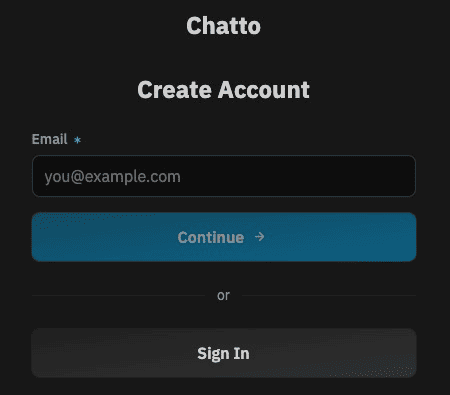
Registration is two steps: enter the email set as CHATTO_OWNERS_EMAILS and confirm the code Chatto sends, then a second screen asks for a username and password to complete the account.
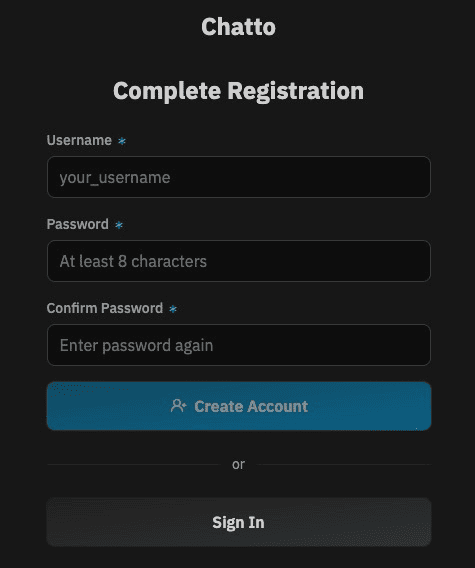
Once that email verifies, Chatto assigns the owner role automatically.
Join #general, post a message, and reply in a thread to see how Chatto keeps thread context separate from the main timeline.
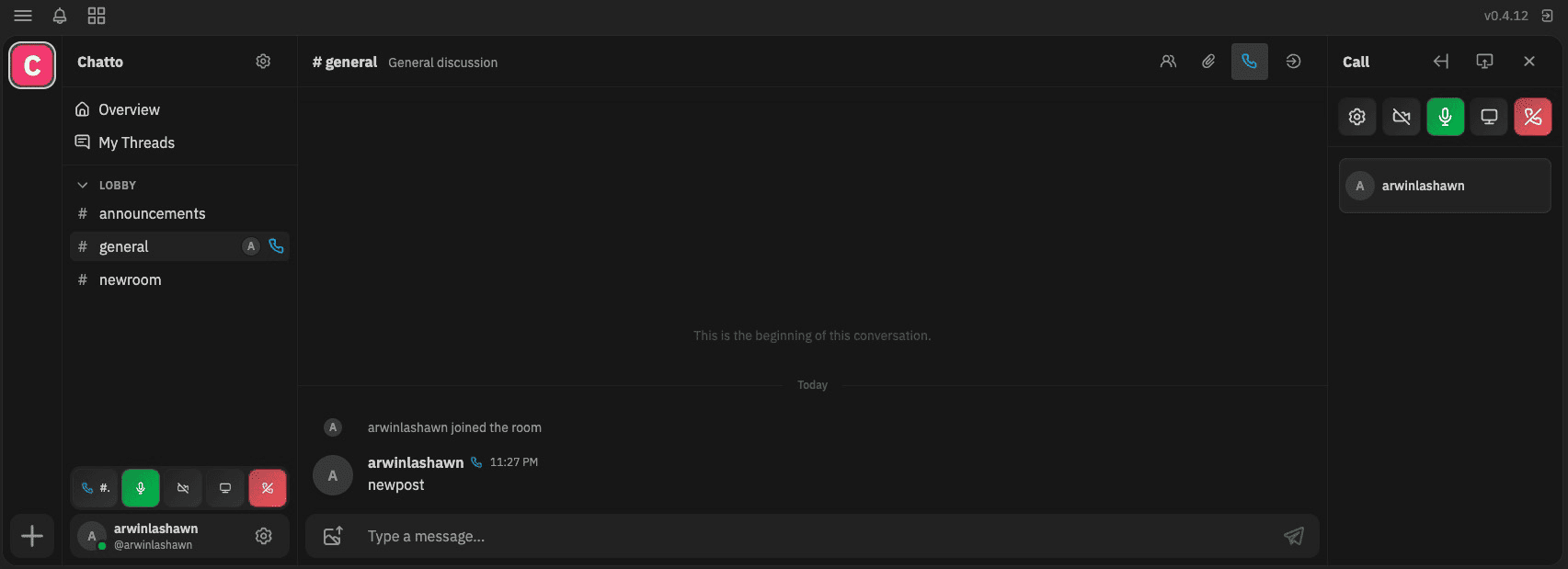
To exercise the LiveKit wiring end to end, click the phone icon in a room’s header and start a call; a working call with live mic and screen-share controls confirms the TCP 7881 fallback path and both UDP media ports are genuinely reachable from outside the VPS.
Creating additional rooms is behind the gear icon next to the server name, which opens the admin section; from there, Rooms → New Room creates and assigns a room to a group, since every room requires a group and room.create is a permission-gated action. The same section covers members, roles, permissions, moderation, and the event log.
For account-level admin work outside the browser, like resetting a password without the web UI:
docker compose exec -u chatto chatto /chatto operator user list --search [email protected]
docker compose exec -u chatto chatto /chatto operator user set-password USER_ID
How to Update Chatto
docker compose pull
docker compose up -d
Compose recreates only the containers whose image changed; NATS and its data volume are untouched by a Chatto or LiveKit update.
Add a bind mount to the chatto service in compose.yml:
chatto:
    volumes:
      - ./backups:/backups
The container runs as UID/GID 1000 by default (PUID/PGID in .env), and the entrypoint doesn’t recursively fix ownership on mounted volumes, so the host directory needs to already belong to that UID or the backup fails on a permission error:
mkdir -p backups
chown -R 1000:1000 backups
docker compose up -d
The backup command also won’t take an interactive passphrase prompt inside docker compose exec, it needs --passphrase-file pointed at a file the container can read:
openssl rand -base64 32 > backups/backup-passphrase.txt
chmod 600 backups/backup-passphrase.txt
docker compose exec -u chatto chatto /chatto backup --encrypt --include-keys \
  --passphrase-file /backups/backup-passphrase.txt \
  -o /backups/chatto-$(date +%F).tar.gz.age
On a near-empty test server this backed up four NATS streams (server events, encryption keys, runtime state, server assets), correctly skipped one (the ephemeral presence cache), and produced a 20 KB encrypted archive in 33 milliseconds, everything needed to restore rooms, messages, and the keys to read them onto a fresh server without touching the rest of the VPS. Keep the passphrase file somewhere other than the archive directory once this moves past testing.
Backup Storage
Free weekly VPS backups on every plan — a floor underneath Chatto’s own encrypted backups, so your rooms and message keys survive a bad update.
What You’ve Got Running
A CentOS 9 x64 Medium VPS (3 CPU, 4 GB RAM, 40 GB SSD, $21.24/mo) went from a blank dnf install to four healthy containers in 1 minute 53 seconds, Docker install included, and now runs Chatto v0.4.12 behind Caddy’s automatic HTTPS, backed by a dedicated NATS JetStream container for storage, with LiveKit handling voice and video calls end to end including screen sharing.
The stack costs about 1 GB of disk and settles around 660 MB of RAM at idle, comfortable headroom on a 4 GB plan.
Chatto ships releases often enough that this version number may already be behind by the time you install; check with docker compose exec chatto /chatto --version rather than assuming it still holds.
Rooms, threads, full-text search, and encrypted-at-rest messages are live at your domain, with an encrypted backup command ready to put on a schedule.
FAQ
What Chatto Can Handle and What It Can’t?
Chatto ships as a single Go binary of around 70 MB, or as a Docker image built from that same binary. Instead of a conventional database, it stores everything, messages, users, rooms, file attachments, in NATS with JetStream persistence. For production, the project recommends running NATS as its own container so Chatto can restart, scale to multiple replicas, or take a zero-downtime upgrade without touching the data store.
On top of that base, Chatto covers most of what a team expects: rooms and room groups with their own permission boundaries, threads, reactions, direct messages, full-text search, and file attachments with thumbnail generation and optional video transcoding through a bundled ffmpeg. Voice and video calls, including screen sharing, run through LiveKit, an open-source WebRTC media server deployed alongside Chatto by the Docker Compose example; the standalone binary doesn’t include it at all.
The project is pre-1.0 and moves fast, four point releases (v0.4.8 through v0.4.12) landed within about a week during the writing of this guide. Expect bugs, expect the public API to change without notice, and read the release notes before every upgrade. Chatto also doesn’t federate between servers by design: each deployment is one isolated community with its own accounts, and there’s no way to link two self-hosted instances together.
Chatto vs. Slack, Discord, and Teams: When Self-Hosting Makes Sense?
ChattoCorp has been explicit that there’s no premium tier, no per-seat pricing, and no advertising planned for the self-hosted server; the only paid product is managed hosting through Chatto Cloud, which you can move on and off of at any time.
Message text and personal account fields are encrypted at rest with per-user keys, and account deletion shreds those keys instead of soft-deleting rows. That data handling model, combined with the project being built in the EU with GDPR compliance as a design goal, is the real case for running it yourself instead of trusting a hosted platform with your team’s conversations.
Since both the web app and the call signaling run over plain HTTPS and WebSocket, server location affects call quality directly; is*hosting’s 40+ locations make picking one close to your team a checkout option instead of a later migration.
VPS in 40+ locations
Choose several VPS servers in various regions and manage them all from a single account.
From $5.94/mo