
Every side project needs a backend eventually: a database, authentication, file storage, and a REST API to tie it together. Supabase Cloud packages all of that, but the Free plan caps out at two projects and pauses any of them that sits idle for a week, which breaks anything meant to stay reachable: a demo, a webhook receiver, an API a script depends on.
This guide walks through a real install of self-hosted Supabase on an is*hosting Medium VPS, from a bare CentOS 9 x64 box to all eleven containers reporting healthy in under seven minutes.
What Supabase Does
Supabase bundles a Postgres database with the services that usually get built around one by hand.
- Postgres — as a base.
- Kong sits in front as the API gateway.
- PostgREST turns the Postgres schema into a REST API automatically.
- GoTrue handles authentication and session tokens.
- Realtime is an Elixir server that broadcasts database changes to subscribed clients.
- Storage manages file uploads with Postgres controlling permissions, and imgproxy handles on-the-fly image transforms.
- Supavisor pools Postgres connections so a serverless frontend doesn't exhaust the database.
- postgres-meta and a Deno-based Edge Runtime round out the stack.
- Studio as the dashboard tying all of it together.
Eleven containers for the default install.
Logs and Analytics (Logflare plus a Vector log collector) don't run unless enabled with sh run.sh config add logs, and turning them on increases memory use noticeably.
The AI Assistant inside Studio needs an OPENAI_API_KEY added to .env; nothing is wired in out of the box. HTTPS isn't configured out of the box either, it needs a reverse proxy in front of Kong. Auth email flows (magic links, password resets, signup confirmations) need a real SMTP relay set in .env before anything sends. is*hosting blocks outbound SMTP by default on Lite and Start, but Medium and above ship with it open. And self-hosted Supabase is community-supported, so there's no managed on-call if something breaks at 3am.
What You Need Before Setup
- Root SSH access to the VPS (included on all is*hosting plans)
- CentOS 9 x64 selected at checkout, Supabase's official installer supports RHEL/CentOS natively
- About 10 minutes for the install itself
- The VPS's public IP address, or a domain pointed at it if HTTPS is needed later
- An SMTP relay if Auth email flows need to work (Medium and above have outbound SMTP open by default)
|
Use case |
RAM |
CPU |
is*hosting plan |
|
Development / testing (Supabase's own stated minimum) |
4 GB |
3 CPU |
Medium — $21.24/mo |
|
Production, or with Logs & Analytics enabled |
8 GB |
4 CPU |
Premium — $31.99/mo |
Both plans include a dedicated IPv4 address by default and weekly VPS backups. Full specs are on the VPS product page. This walkthrough uses the Medium plan.
How to Install Supabase on a VPS

Step 1: Confirm the starting state
CentOS Stream 9 ships with firewalld installed but not necessarily running. Check before touching anything:
cat /etc/os-release
systemctl status firewalld
On the Medium VPS used for this guide, the OS confirmed as expected and firewalld came back inactive:
PRETTY_NAME="CentOS Stream 9"
...
○ firewalld.service - firewalld - dynamic firewall daemon
     Loaded: loaded (/usr/lib/systemd/system/firewalld.service; disabled; preset: enabled)
     Active: inactive (dead)
That matters for the firewall section later: nothing on this box needs firewalld's rules touched, and Docker never disabled anything, since it was already off.
Step 2: Run the quick-start installer
Supabase ships a single script that installs Docker, pulls the Docker Compose configuration, and generates every secret the stack needs. Run it as root:
curl -fsSL https://supabase.link/setup.sh | shIt detects the OS first:
===> Detected OS: centos (rhel)then installs git, openssl, jq, and ca-certificates, adds Docker's official CentOS repo, and installs docker-ce, docker-ce-cli, containerd.io, docker-buildx-plugin, and docker-compose-plugin from it. Adding Docker's repo first matters on CentOS 9: running dnf install docker-ce straight from the default repos fails with a "No match for argument" error, since the package isn't there until Docker's repo is added. The script handles that step itself.
Step 3: Set the URLs
The script prompts for four values on the controlling terminal. For a VPS without a domain yet, use the server's public IP for the first prompt and accept the defaults for the rest:
SUPABASE_PUBLIC_URL (Studio + APIs) [http://localhost:8000]: http://<your-vps-ip>:8000
API_EXTERNAL_URL (Auth callbacks) [http://<your-vps-ip>:8000]: [Enter]
SITE_URL (default Auth redirect) [http://localhost:3000]: [Enter]
PROXY_DOMAIN (for nginx/caddy HTTPS proxy) [your-domain.example.com]: [Enter]
One quirk worth knowing about: the script tries to derive a Certbot email address from whatever gets entered as the public URL. Feed it a bare IP instead of a domain and it produces something like [email protected], built from the last two octets. It's harmless, Certbot never actually runs unless the HTTPS reverse-proxy override gets enabled later, but it looks like a bug the first time it scrolls past.
Step 4: Let it generate secrets and pull images
The script runs utils/generate-keys.sh and utils/add-new-auth-keys.sh automatically, writing a fresh POSTGRES_PASSWORD, JWT_SECRET, DASHBOARD_PASSWORD, and the rest of the API key pair straight into .env. None of those values should ever end up in a saved log or a support ticket, the script prints each one to stdout as it writes it, so redirect or scrub this step if capturing your own session.
It then pulls every image the stack needs:
===> Pulling Docker images
 Image postgrest/postgrest:v14.12 Pulling
 Image supabase/realtime:v2.102.3 Pulling
 Image kong/kong:3.9.1 Pulling
 ...
Eleven service images plus a temporary node:22-alpine used only for key generation. This is the slow part of the install.
Step 5: Start the stack
cd supabase-project
sh run.sh start
This runs docker compose up -d --wait, starting every container and blocking until each one reports healthy. Postgres and Studio come up first since most other services depend on one or both, Kong specifically waits on Studio, and storage and edge-functions finish last. On this Medium VPS, the entire run, from the first ===> Setup starting line to the last container reporting healthy, took 6 minutes 53 seconds:
Setup complete. Project ready at: /root/supabase-project

Next steps:
  cd /root/supabase-project
  sh run.sh config
  sh run.sh secrets
  sh run.sh start
Confirm everything's up:
docker compose ps
NAME                             IMAGE                                    STATUS
supabase-db                      supabase/postgres:17.6.1.136             Up (healthy)
supabase-kong                    kong/kong:3.9.1                          Up (healthy)
supabase-studio                  supabase/studio:2026.07.07-sha-a6a04f2   Up (healthy)
supabase-auth                    supabase/gotrue:v2.189.0                 Up (healthy)
supabase-rest                    postgrest/postgrest:v14.12               Up (healthy)
supabase-storage                 supabase/storage-api:v1.60.4             Up (healthy)
supabase-meta                    supabase/postgres-meta:v0.96.6           Up (healthy)
supabase-pooler                  supabase/supavisor:2.9.5                 Up (healthy)
supabase-imgproxy                darthsim/imgproxy:v3.30.1                Up (healthy)
supabase-edge-functions          supabase/edge-runtime:v1.74.0            Up (healthy)
realtime-dev.supabase-realtime   supabase/realtime:v2.102.3               Up (healthy)
All eleven report healthy, matching the eleven images pulled in Step 4.
Firewall
Every port this stack exposes comes from Docker, not from a host service. Kong publishes 8000 (HTTP) and 8443 (HTTPS, unused until a certificate is configured) directly to the internet. Supavisor publishes 5432 (session-mode Postgres) and 6543 (transaction-mode pooling) the same way. Confirmed on this box with ss -tlnp:
LISTEN 0.0.0.0:5432   docker-proxy
LISTEN 0.0.0.0:8000   docker-proxy
LISTEN 0.0.0.0:8443   docker-proxy
LISTEN 0.0.0.0:6543   docker-proxy
LISTEN 0.0.0.0:22     sshd
Docker's iptables rules make those four ports reachable regardless of firewalld's state, so there's no firewall-cmd step here, firewalld stayed inactive before and after this install and nothing on the host needs it. One thing worth deciding for yourself: 5432 and 6543 sit open to the entire internet by default, protected only by POSTGRES_PASSWORD. Anyone who doesn't need direct external Postgres access should restrict those two ports or remove the port mapping from the supavisor service in docker-compose.yml entirely.
How to Use Supabase: Studio, Table Editor, and API Keys
Studio sits behind Kong at http://<your-vps-ip>:8000, protected by HTTP Basic Auth using DASHBOARD_USERNAME and DASHBOARD_PASSWORD from .env. Logging in lands directly on the project overview, there's no multi-step onboarding wizard to click through first.
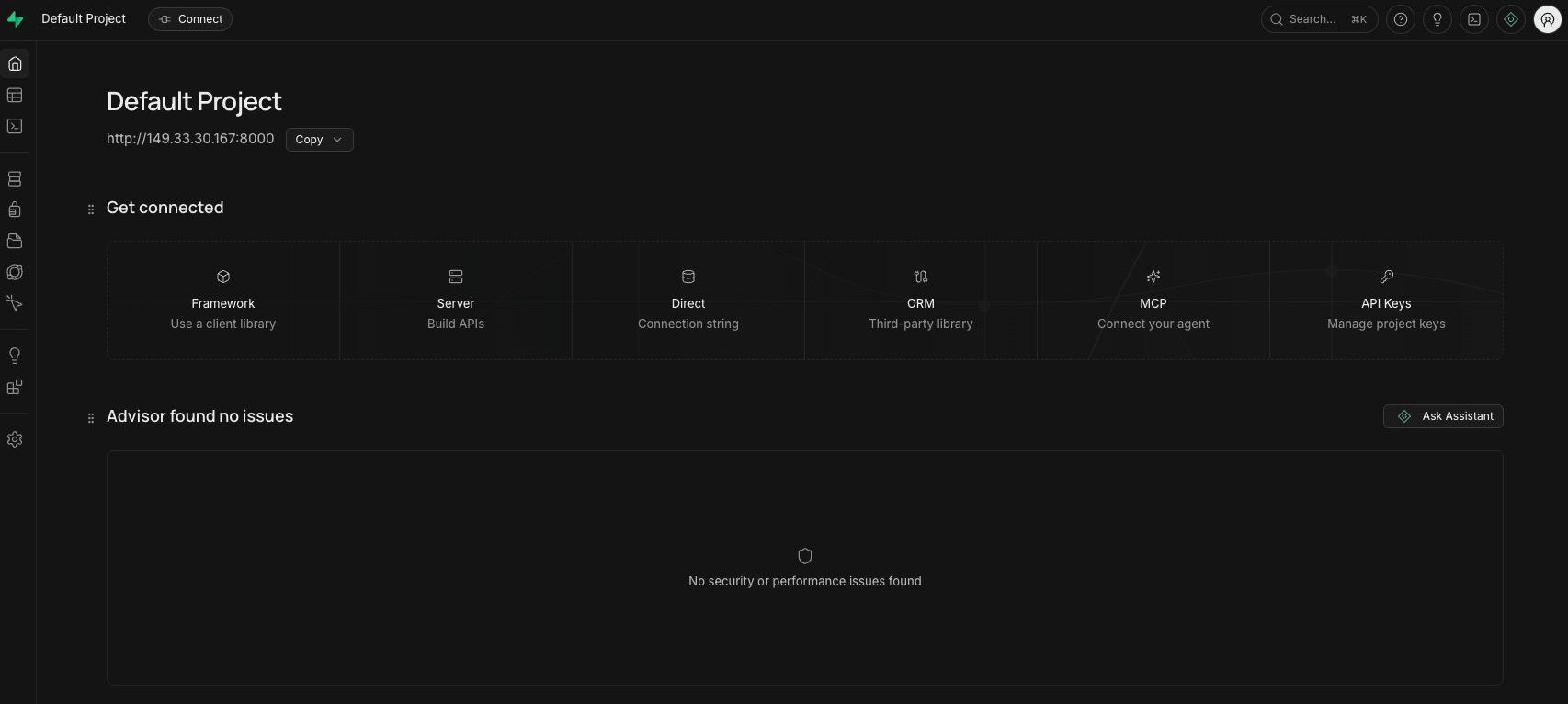
The Advisor panel on that first screen runs automatically and flags security or performance issues, unused indexes, tables missing row-level security, and similar, with zero configuration required.
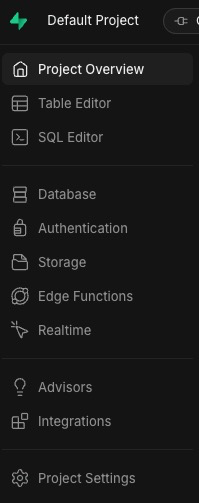
Table Editor and SQL Editor, both in the left sidebar, cover the two most common day-one tasks: building a schema visually in Table Editor, or running raw SQL in SQL Editor for anything the point-and-click interface doesn't handle.
API Keys, under the Get Connected panel, is where the anon key (safe for client-side code) and the service_role key (server-side only, full database access) live. Every request through Kong to /rest/v1/, /auth/v1/, or /storage/v1/ needs one of these two keys attached.
How to Update Supabase
Supabase publishes a new stable release of the Docker Compose configuration roughly once a month. To update a single service, the pattern the project itself documents: check the image tags on Docker Hub, edit the version line in docker-compose.yml, then pull and recreate just that service:
sh run.sh pull
sh run.sh recreate studio
Updating the whole stack's configuration is less automatic, since the quick-start script sparse-clones the docker/ directory once and doesn't keep it under git locally. Re-running setup.sh inside an existing project directory does nothing, it detects the existing .env and docker-compose.yml and exits immediately. Picking up a new release means re-cloning the docker/ directory from the Supabase repository into a fresh temp folder and diffing it against the current docker-compose.yml, keeping the existing .env untouched.
Before either kind of update, is*hosting includes free weekly VPS backups on all plans, but a full VPS restore is a blunt instrument for rolling back one bad container. A targeted Postgres dump restores faster and doesn't touch anything else running on the box:
docker exec supabase-db pg_dumpall -U postgres > supabase-backup-$(date +%F).sqlWhat You've Got Running
Start to finish, this install took 6 minutes 53 seconds on an is*hosting Medium VPS (3 CPU, 4 GB RAM, 40 GB SSD, $21.24/month), from the first line of setup.sh output to all eleven containers reporting healthy. The stack settled at roughly 10 GB of disk (up from 1.8 GB to 12 GB) and 1.9 GB of RAM in use out of 3.8 GB available, per free -h, leaving about 2 GB of headroom before it's worth stepping up to Premium.
Running on that one VPS: a full Postgres 17 database, an auto-generated REST API, JWT-based authentication, file storage with image transforms, realtime subscriptions, and Deno-based edge functions, all behind a single Kong gateway on port 8000. No per-project fee, no monthly active user counter, no pause after a week of inactivity. For first login and initial VPS hardening, is*hosting's Linux VPS guide covers the basics this walkthrough assumes, and the full plan lineup is on the VPS product page.
VPS
Self-host the complete Supabase stack – Postgres, Auth, Storage, and edge functions – on a VPS with a dedicated IPv4 and free weekly backups.
Supabase vs. Supabase Cloud: When Self-Hosting Makes Sense?
Supabase Cloud's Free plan covers two projects at 500 MB of database storage each, but pauses any project idle for a week. That pause, not the price, is the real ceiling on the Free plan for anything meant to run continuously. Moving to Pro removes it: Pro is $25 a month per organization, with a $10 compute credit covering one Micro instance, and each additional project in that same organization needs its own compute add-on starting around $10 a month. Three always-on side projects on Pro land around $45 a month. An is*hosting Medium VPS runs as many self-hosted projects as the box has room for, for $21.24 a month flat, with no pause and no per-project compute meter to watch.
The tradeoff is that patching Postgres and watching disk usage becomes your job, and is*hosting's weekly backups cover the whole VPS rather than point-in-time recovery for a single database. For latency-sensitive apps, is*hosting's 40-plus locations also make it possible to place the database physically close to users, something a single fixed AWS region on Supabase Cloud can't offer per project.
GPU Servers
Power for ML, rendering, and compute-heavy tasks – no sharing, no bottlenecks.
Get GPU Power