
FigCraft is a desktop design app, an open-source alternative to Figma. The part you put on a VPS is figcraft-server: it stores your team's files and lets people edit them together via a link or a join code.
FigCraft is open source (MIT / Apache 2.0), written in Rust, and runs locally with no account, no subscription, and no telemetry. Keep in mind that the project is in alpha (v0.7.0): there are no user accounts (a link is the access), and files are not end-to-end encrypted.
In the roadmap, the authors rate its readiness for real work at about 53% (as of October 2026). Compatibility with real Figma documents hasn't been fully tested yet, but most features are in place, and the tool is usable.
What you need before you start
First, a VPS (we recommend Start) with Ubuntu 24.04+ or Debian 12+, and SSH access.
Next, a subdomain with an A record pointing to the server's IP. You need it for the HTTPS certificate.
And finally, the FigCraft desktop app on your computer. You'll use it to publish a file to the server and open it via a link from a second device.
Setting up the subdomain and the app is covered in the guide below.
Which is*hosting plan to choose
- Lite (1 vCPU, 1 GB, 20 GB, $6.99/mo, or $5.94/mo billed yearly): the minimum. The authors say 1 CPU and 1 GB is "plenty for a team" if you install the prebuilt binary.
- Start (2 vCPU, 2 GB, 30 GB, $11.99/mo, or $10.19/mo billed yearly): our pick to get started. For a team server, 2 GB of RAM and a 25–50 GB disk leave room for nightly backups.
For a team of 5 on Start, file sizes and disk space will run out long before RAM does.
VPS
Your own server for FigCraft and other team tools, with full root access and a choice of locations.
How to install FigCraft on a VPS
In our test (VPS Start, 2 GB RAM), the idle server used 888 KB of memory, and the whole install, Caddy included, added about 14 MiB to the system. Disk usage grew by 0.1 GB. Most of the disk will go to your files once the team starts publishing.
Step 1. Connect to the server
Mac: open Terminal (Cmd+Space → type "Terminal" → Enter).
Windows: download Tabby or use PowerShell.
Run:
ssh root@YOUR_VPS_IPReplace YOUR_VPS_IP with the real IP from your welcome email. For example:
On the first connection, you'll see "Are you sure you want to continue connecting?". Type yes and press Enter.
Then paste your password. It doesn't show on screen, and that's expected: terminals hide passwords. Paste it and press Enter.
When you see root@server:~#, you're in.
Step 2. Create a subdomain
If you don't have a domain, buy one from any registrar (Cloudflare, Namecheap, Porkbun). A basic domain costs about $2–15 a year. If you already have one, set it up for FigCraft right away.
In your registrar's dashboard, go to DNS → Records → Add record. Set Type A, Name figcraft, IPv4 YOUR_VPS_IP. You'll get figcraft.example.com. If your registrar has a proxy (on Cloudflare it's the orange cloud, Proxy status), switch it to "DNS only", or Caddy may fail to get the certificate.
To check that the subdomain works, run this in the terminal (use your own subdomain):
getent hosts figcraft.example.comIf the command returns YOUR_VPS_IP, you're all set. The record usually starts working within a few minutes, sometimes within an hour.
From here on, replace figcraft.example.com with your subdomain.
Step 3. Update the system
In the terminal on the server:
apt update && apt upgrade -yIf dialogs with questions pop up, keep the defaults and press Enter. If the output says a restart is required, run reboot, wait a minute, and connect over SSH again.
The update can take a few minutes.
Step 4. Download the latest FigCraft server release
Get the latest version number:
VERSION=$(curl -fsSL https://api.github.com/repos/storytold/figcraft/releases/latest | sed -n 's/.*"tag_name": *"v\([^"]*\)".*/\1/p'); echo $VERSIONIt should print the version, for example, 0.7.0. If the line is empty, check the server's internet connection and run the command again.
Download the server archive and the checksum file:
curl -fLO "https://github.com/storytold/figcraft/releases/download/v$VERSION/figcraft-server-$VERSION-linux-$(uname -m).tar.gz" && curl -fLO "https://github.com/storytold/figcraft/releases/download/v$VERSION/SHA256SUMS.txt"Check that the archive downloaded intact and hasn't been tampered with:
sha256sum --ignore-missing -c SHA256SUMS.txtThe output should include ...tar.gz: OK.
Unpack the archive and go to the folder:
tar -xzf figcraft-server-*.tar.gz && cd figcraft-server-*/ && lsThe file list should include install.sh.
Step 5. Install the server
Put your email in the command. It goes into the server settings as the abuse contact, and FigCraft shows it to people who publish files to your server, so use an address you're fine sharing.
./install.sh --private --host figcraft.example.com --email [email protected]The script installs Caddy with a free HTTPS certificate, creates a systemd service, and turns on the firewall, leaving only SSH, 80, and 443 open. At the end, it prints a cheat sheet with all the admin commands. Save it.
Step 6. Check everything and finish the setup
6.1. The server responds over HTTPS:
curl https://figcraft.example.com/healthzIt should answer ok. If you get a certificate error, wait a minute and retry: Caddy needs a moment to get the certificate.
6.2. The server is actually private:
cat /etc/figcraft-server/server.tomlThe output should include open_publish = false.
6.3. Raise the file size limit. The script sets max_file_mb = 8. A file with lots of images can go over 8 MB, and then the server rejects the edit. For a team, set it to 64:
sed -i 's/^max_file_mb = 8/max_file_mb = 64/' /etc/figcraft-server/server.toml && systemctl restart figcraft-server && grep max_file_mb /etc/figcraft-server/server.tomlIt should print max_file_mb = 64.
6.4. Turn on nightly backups. They're off by default.
systemctl enable --now figcraft-backup.timer && systemctl list-timers figcraft-backup.timer --no-pagerBackups are kept for 7 days in /var/backups/figcraft-server. They contain every file and the server key, so keep any copies as private as the server itself.
6.5. Resources after install:
free -h && df -h / && systemctl status figcraft-server --no-pagerThe service should be active (running).
Step 7. Get the publishing key
The server is private (open_publish = false), so only someone with the key can upload a new file to it. Without the key, the server rejects publishing even if the address is known.
In the terminal on the server:
sudo -u figcraft figcraft-server --config /etc/figcraft-server/server.toml keyThe command prints an address like this:
wss://figcraft.example.com/?key=long_random_stringEverything after ?key= is the secret part. Only you need this key to publish projects to the server. Treat it like a password.
Step 8. Install the app and publish a file
- Install FigCraft for your OS from Releases and open it. The interface language follows your system settings. Your teammates need to install the app too.
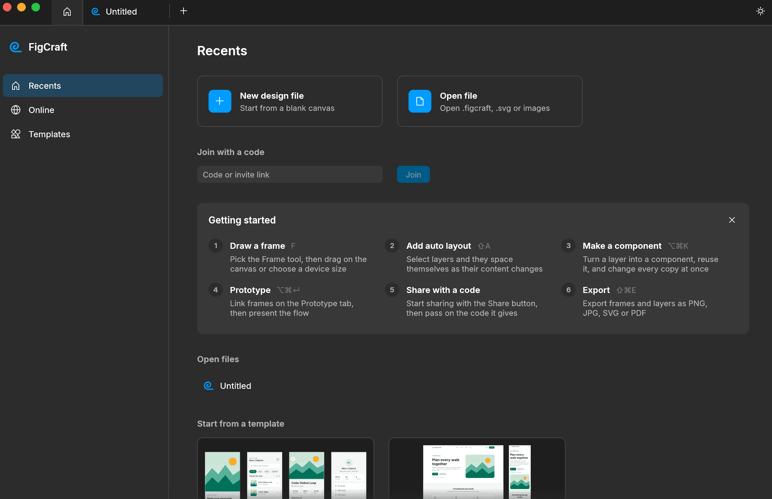
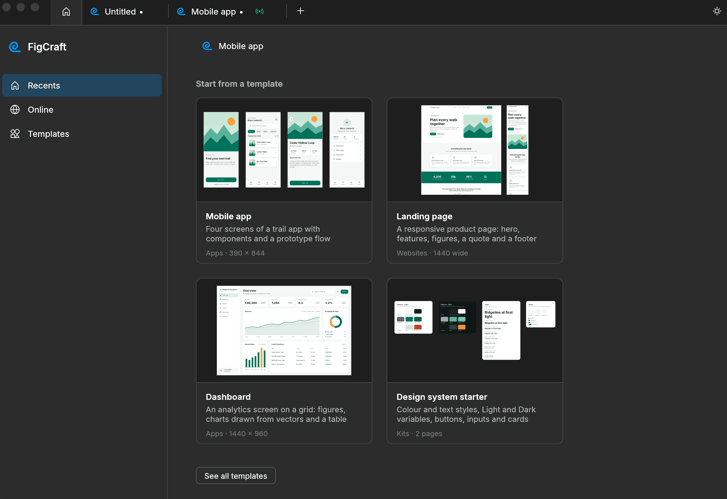
- Open any template on the home screen.
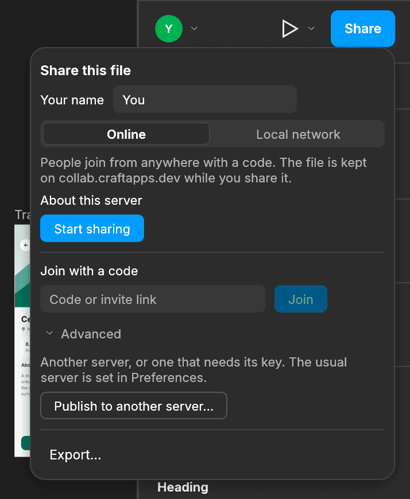
- Click Share → Advanced → Publish to another server and paste the publishing key from Step 7. Don't click Start sharing: by default, that button sends the file to FigCraft's public server, not to yours.
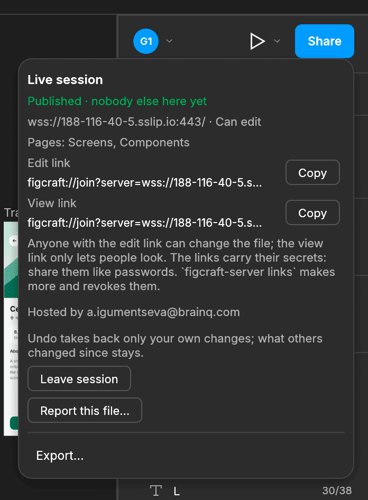
- When publishing finishes, Share shows an edit link and a view link. Copy the edit link.
- Share the link with your teammates. Move a few objects and check that the changes and cursors show up in both windows.
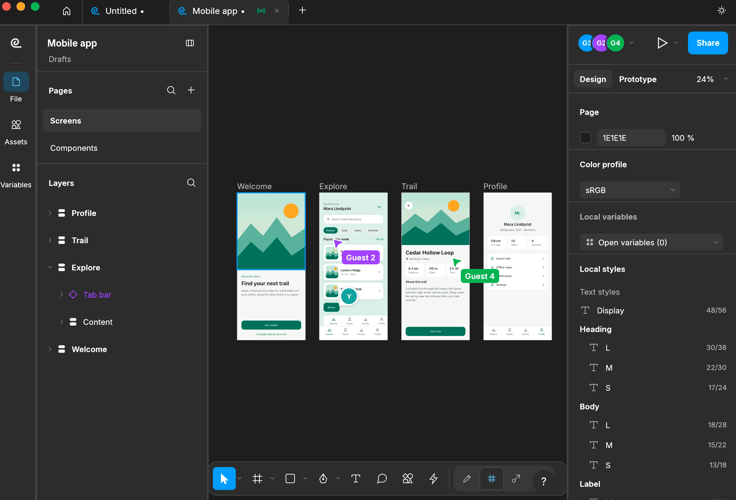
To check that the file is on your server and how many people are in it, run:
sudo -u figcraft figcraft-server --config /etc/figcraft-server/server.toml files listThe PEOPLE column shows how many participants are in the file right now, for example:
ID                NAME        PEOPLE  SIZE       CREATED     IDLE  EXPIRES  REPORTS  BY
000d6090e8a4ee43  Mobile app       2  163.5 KiB  2026-10-19  0d    never          0  key
Administration
Every command is in the cheat sheet the installer prints.
Live logs:
journalctl -u figcraft-server -fTo exit log viewing, press Ctrl + C.
Files with their sizes and who's working in them:
sudo -u figcraft figcraft-server --config /etc/figcraft-server/server.toml files list --sort sizeRemove a file from the server:
sudo -u figcraft figcraft-server --config /etc/figcraft-server/server.toml files remove FILEUpgrading
Download the new release as in Step 4 and run install.sh again. According to the docs, the script restarts the server only if something changed, and the apps reconnect on their own. If the release notes say the protocol changed, upgrade the server and everyone's apps at the same time.
Monitoring
Point any uptime monitor at https://figcraft.example.com/healthz. While the server is running, it answers ok.
24/7 Support
Stuck on DNS, the certificate or the firewall? Our support team is here to help 24/7.